Where is Compact and Repair in Microsoft Access 2007, 2010, 2013, 2016, 2019 and 365?
- Familiar way to look for Compact and Repair feature if you have Classic Menu
- If you do not have Classic Menu…
 |
How to Bring Back Classic Menus and Toolbars to Office 2007, 2010, 2013, 2016, 2019 and 365? |
Familiar way to look for Compact and Repair feature if you have Classic Menu
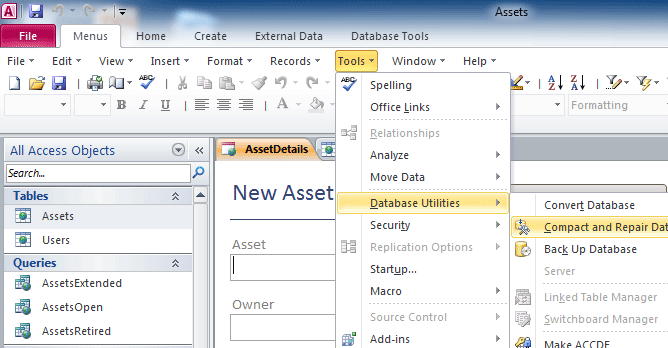
Classic Menu for Office is designed to respect your habit, and help you find all commands and feature with the same way that you did in Microsoft Access 2003. It is also very familiar and easily to find out Compact and Repair Database feature in Microsoft Access 2007, 2010, 2013, 2016, 2019 and 365:
- Click the Tools drop down menu in main menu;
- Click the Database Utilities item;
- Then you will view the sub-item of Compact and Repair Database.
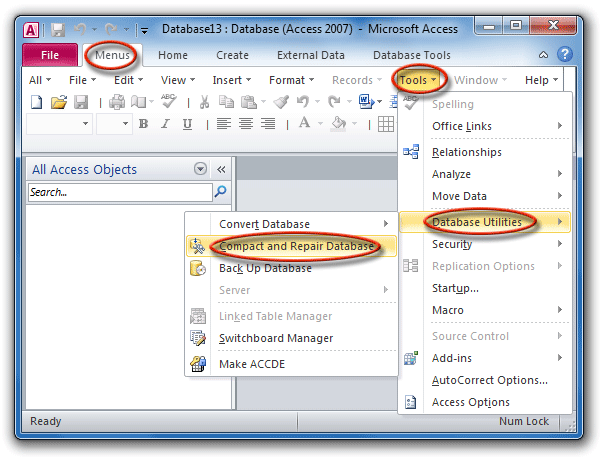
Figure 1: Get Compact and Repair Database in Classic Menu

Get Compare and Repair Database in Ribbon if you do not have Classic Menu…
The Tools menu is not exist in Microsoft Access 2007, 2010, 2013, 2016, 2019 and 365 any longer. The Compare and Repair Database command is moved to other tabs or groups of Ribbon. What’s worse, this command stays different place in Access 2007 and Access 2010/2013.
Access 2007
- Click the Office button at the top-left corner;
- Click the Manage button at the left;
- Then you will view Compare and Repair Database commands at the right.
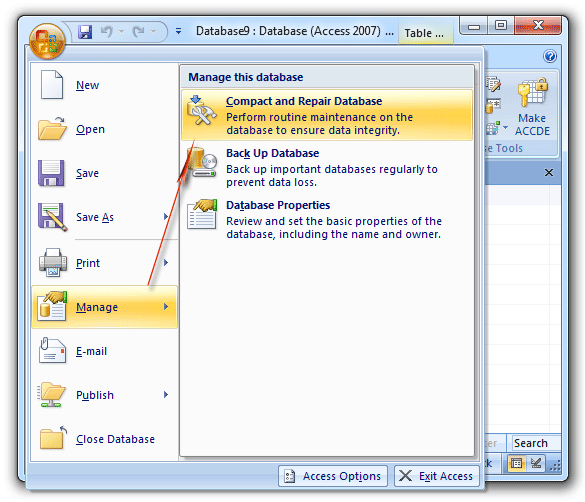
Figure 2: Find out Compact and Repair Database in Access 2007 Ribbon
Access 2010/2013
- Click the Database Tools tab;
- Go to the Tools group;
- Then you will view the Compare and Repair Database button.
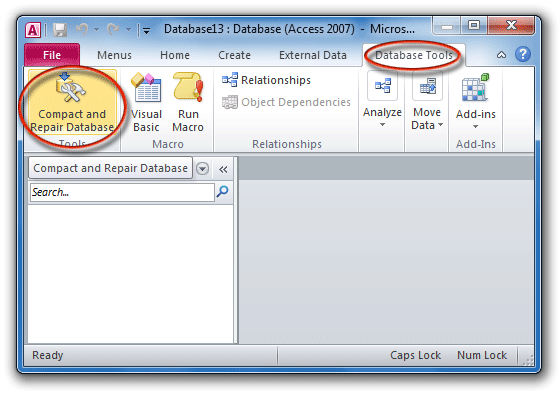
Figure 3: Get Compact and Repair Database in Access 2010 Ribbon
Classic Menu for Office
Frustrated by endless searches for commands on the ribbon interface of Access? The Classic Menu for Office brings back the familiar menus and toolbars to Microsoft Access 2007, 2010, 2013, 2016, 2019 and 365. The classic view allows you to work with Office 2010/2013/2016 as if it were Office 2003/2002/2000.
- All new features and commands for Access 2007, 2010, 2013, 2016, 2019 and 365 have been added to the menus and toolbars.
- You can still enjoy many features of Access 2003 that have been removed from Access 2007, 2010, 2013, 2016, 2019 and 365.
- You won't need any training or tutorials after upgrading to Microsoft Access 2007, 2010 or 2013.
Classic Menu for OfficeIt includes Classic Menu for Word, Excel, PowerPoint, Access, Outlook, Publisher, InfoPath, Visio and Project 2010, 2013, 2016, 2019 and 365.
|
||
 |
Classic Menu for Office 2007It includes Classic Menu for Word, Excel, PowerPoint, Access and Outlook 2007.
|