Where is Protect Sheet Command in Microsoft Excel 2007, 2010, 2013, 2016, 2019 and 365?
- Familiar way to protect sheet if you have Classic Menu for Office
- Find out Protect Sheet command in Ribbon if you do not have Classic Menu for Office
 |
How to Bring Back Classic Menus and Toolbars to Office 2007, 2010, 2013, 2016, 2019 and 365? |
Familiar way to protect sheet if you have Classic Menu for Office
Classic Menu for Office inserts old menus and toolbars of Microsoft Excel 2003 into Microsoft Excel 2007, 2010, 2013, 2016, 2019 and 365 Ribbon, and makes Excel 2007, 2010, 2013, 2016, 2019 and 365 look like Excel 2003. If you have it, you have two methods to protect sheets:
Method A: Protect Sheet command in Tools Menu if you have Classic Menu for Office
- Click Menus tab;
- Click Tools drop down menu;
- Click the Protection item;
- Then you will the Protect Sheet item staying in the sub-item list of Protection.
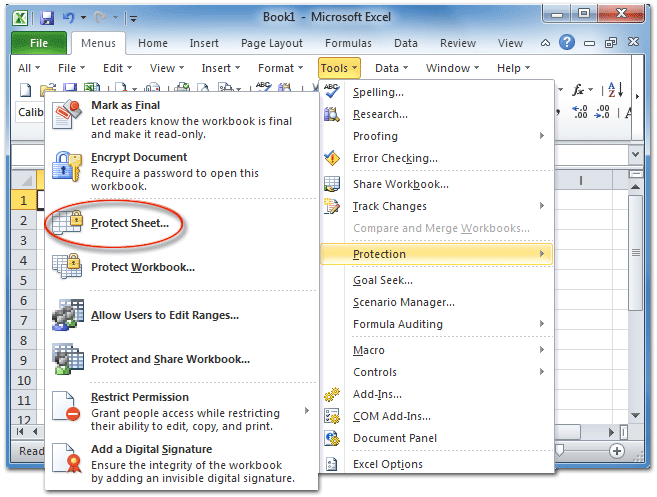
Figure 1: Protect Sheet in Microsoft Excel 2010's Tools Menu
Please click to know more information and free download Classic Menu for Office suites and programs.
Method B: Protect Sheet command in old toolbars if you have Classic Menu for Office
Under Menus tab you can get familiar toolbarhave exactly the same old toolbars as in your Excel 2003. And yYou can get access the Protect Sheet command in the old Toolbars according to the following screenshot:
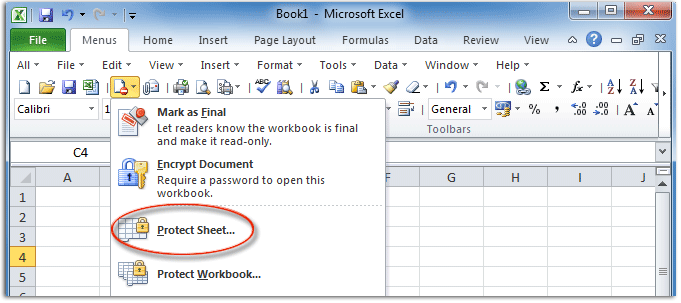
Figure 2: Protect Sheet in Microsoft Excel 2010's Toolbar
Please click to know more information and free download Classic Menu for Office suites and programs.
Method C: Protect Sheet button in Additional Toolbar if you have Classic Menu for Office
If you are using Microsoft Excel 2007 and have installed Classic Menu for Office on your computer, you will easily find out the Additional Toolbar at far right of Toolbars under Menus. This Additional Toolbar collects useful buttons which are not staying in old Toolbar. Of course you can get the Protect Sheet button in this Additional Toolbar. Please note that this Additional Toolbar is only available in Classic Menu for Office 2007.
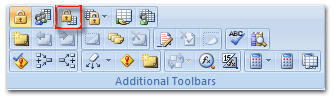
Figure 3: Protect Sheet button in Additional Toolbars
Please click to know more information and free download Classic Menu for Office suites and programs.

Find out Protect Sheet command in Ribbon without Classic Menu for Office
There are also two methods to protect sheet to get command button in Ribbon:
Method A: Protect Sheet button in Review tab
Go to the Changes group under Review tab, you will find out the Protect Sheet button as soon as possible.
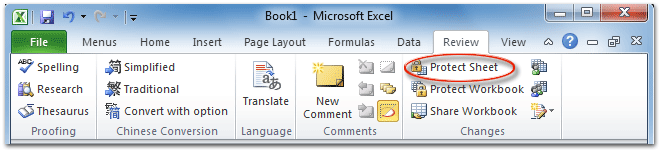
Figure 4: Protect Sheet button in Microsoft Excel 2010's Review Tab
Method B: Protect Sheet command in Excel 2010/2013’s backstage view
- Click the File tab in Microsoft Excel 2010/2013;
- Click Info button at left bar;
- Click the Protect Workbook button in the middle section;
- Then you will view the third item is Protect Current Sheet in the drop down list.
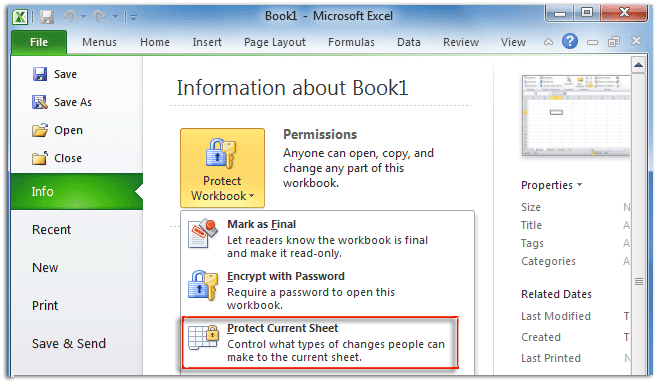
Figure 5: Protect Sheet in Microsoft Excel 2010's backstage view
Please note that this method is only valid in Microsoft Excel 2010/2013, and Microsoft Excel 2007 does not support this way.
Please click to know more information and free download Classic Menu for Office suites and programs.
More Tips for Microsoft Excel 2007, 2010, 2013, 2016, 2019 and 365 (includes Office 365)
- Where is AutoFormat
- Where is Control Toolbox
- Where is Document Properties
- Where is Edit Menu
- Where is Format Menu
- Where is Insert Menu
- Where is Page Break Preview
- Where is Tools Menu
- More...
Classic Menu for Office
Brings the familiar classic menus and toolbars back to Microsoft Office 2007, 2010, 2013, 2016, 2019 and 365. You can use Office 2007/2010/2013/2016 immediately without any training. Supports all languages, and all new commands of 2007, 2010, 2013, 2016, 2019 and 365 have been added into the classic interface.
Classic Menu for OfficeIt includes Classic Menu for Word, Excel, PowerPoint, OneNote, Outlook, Publisher, Access, InfoPath, Visio and Project 2010, 2013, 2016, 2019 and 365.
|
||
 |
Classic Menu for Office 2007It includes Classic Menu for Word, Excel, PowerPoint, Access and Outlook 2007.
|



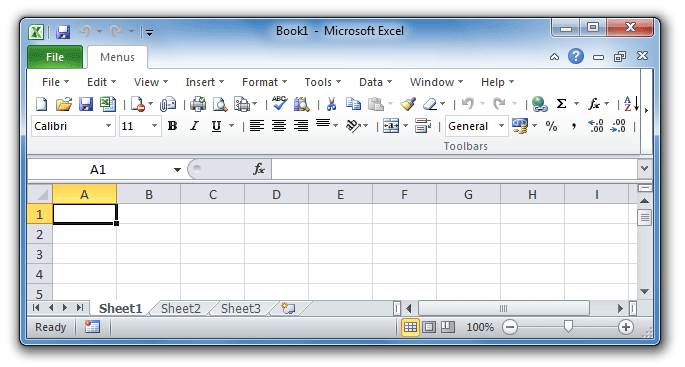
Screen Shot of Classic Menu for Excel