Where is Signature Stored in Microsoft Outlook 2007, 2010, 2013, 2016, 2019 and 365
- Quickly find Signature Stored in Outlook 2007/2010/2013/2016/2019 if you are using Classic Menu for Office
- If you have not Classic Menu for Office (Method: On Insert tab)
Microsoft Outlook 2007, 2010, 2013, 2016, 2019 and 365 bring ribbon interface for intuitive glance, but how to find the Signature store might be a problem for those who start to upgrade from Outlook 2003 to Outlook 2007/2010/2013. provided below gives you methods to find Signature stored with or without classic style interface.
 |
How to Bring Back Classic Menus and Toolbars to Office 2007, 2010, 2013, 2016 and 365? |
If you are using Classic Menu for Office...
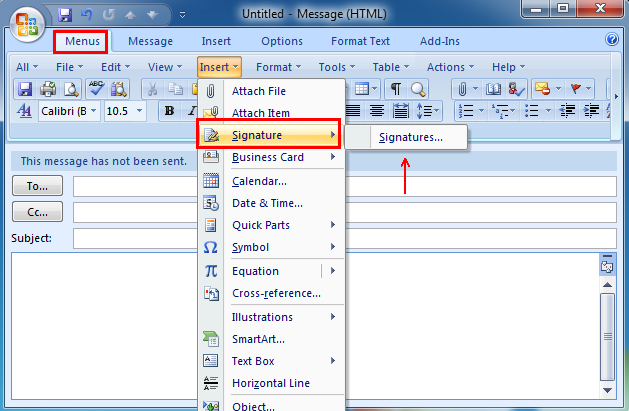
In a new message window, On Menus tab, click Insert menu to bring up the drop-down menu. And you can easily see the Signature command next to Business Card. Place your cursor on Signature, you will see Signatures...option. If you previously have created some signatures, then you can also see those signaure stored next to Signature...option.
See it below:
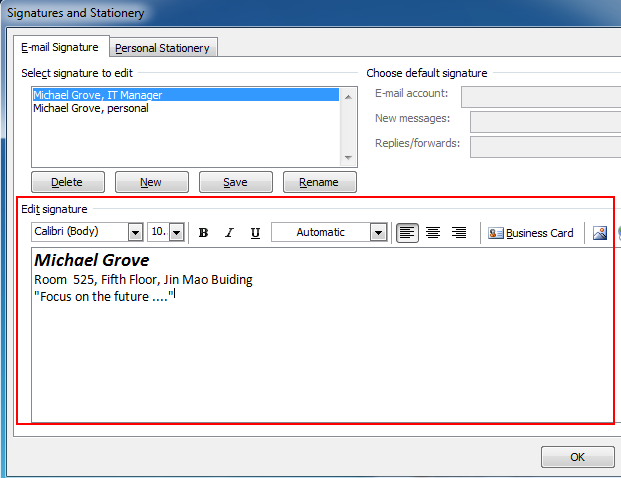
Click Signature...option, the Signature and Stationery window appears. You can Click New button to create a signature or multiple signatures, and in the Edit Signature box, text, business card, images or logo can be edited and personalized into the signature.
See it below:

If you are not using Classic Menu for Office...
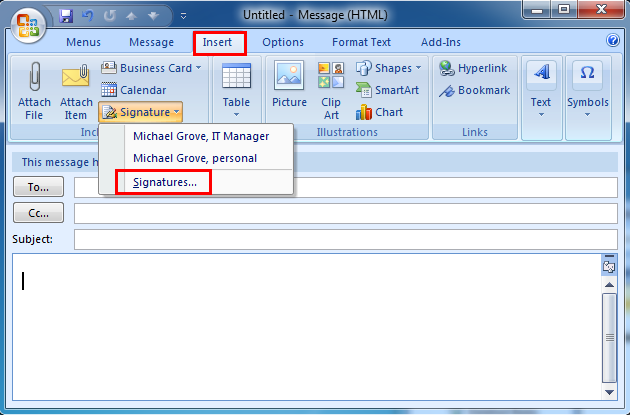
Without classic style interface in Microsoft Outlook 2007, 2010, 2013, 2016, 2019 and 365, you can still find Signature stored in the ribbon. Just switch to Insert tab, in the Include group, you can see Signature option at the lower corner. Click the inverted triangle next to Signature, you will see Signature... and some signature stored already.
See it below:
Note that you can configure Microsoft Outlook 2007/2010/2013/2016/2019 to add signature automatically in any outgoing message, or add the signature manually if you want.
What is Classic Menu for Office/Outlook
Brings the familiar classic menus and toolbars back to Microsoft Office 2007, 2010, 2013, 2016, 2019 and 365, helps users get through the transition from Office 2003 (or 2002, 2000) to Office 2007, 2010 or 2013, and saves your money and energy on training if you are upgrading your Office.
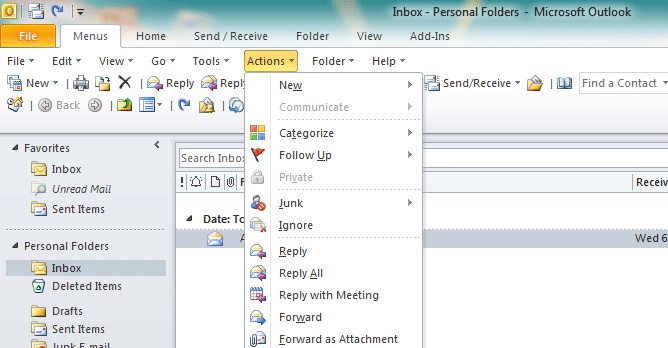
Classic Menu for OfficeIt includes Classic Menu for Word, Excel, PowerPoint, Access, Outlook, OneNote, Publisher, InfoPath, Visio and Project 2010, 2013, 2016, 2019 and 365.
|
||
 |
Classic Menu for Office 2007It includes Classic Menu for Word, Excel, PowerPoint, Access and Outlook 2007.
|