Where is Line Spacing in Microsoft Publisher 2010 and 2013
- Familiar way to get Line Spacing in Publisher 2010 and 2013 if you have Classic Menu
- Get Line Spacing in the Ribbon of Microsoft Publisher 2010 and 2013
 |
How to Bring Back Classic Menus and Toolbars to Office 2007, 2010, 2013, 2016, 2019 and 365? |
Familiar way to get Line Spacing in Publisher 2010 and 2013 if you have Classic Menu
If you have Classic Menu for Publisher 2010 and 2013 on your computer, you can get the “Line Spacing” in Publisher 2010 and 2013 with the same way that you do in Microsoft Publisher 2007 and 2003.
- Select the text box that you need to customize firstly;
- Then go to the "Menus" tab, click the “Format” item;
- And select the “Paragraph” item.
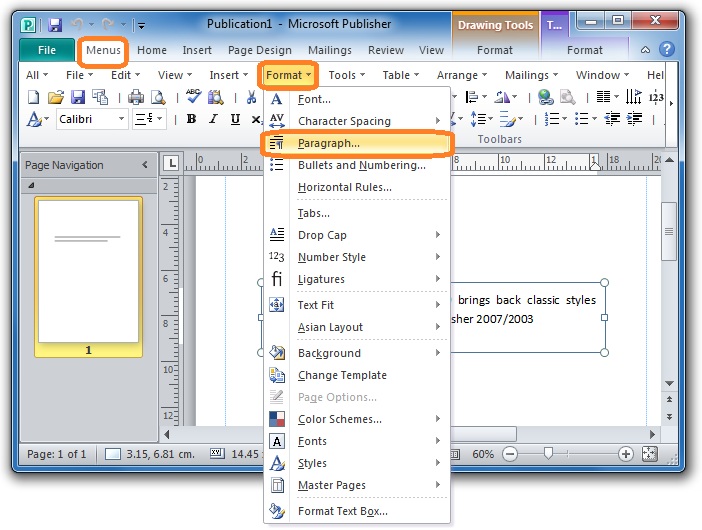
Figure 1
Now, the “Format Paragraph Dialog Box” will be opened, and you are able to change the line spacing in this dialog box expediently.
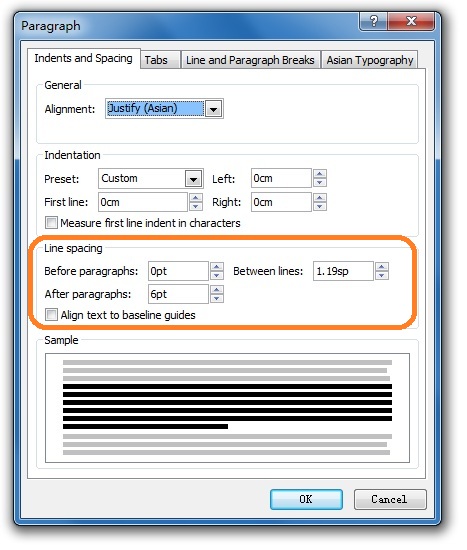
Figure 2
Get Line Spacing in the Ribbon of Microsoft Publisher 2010 and 2013
It is very easy to change the line spacing in Microsoft Publisher 2007 / 2003. However this “Line Spacing” feature seems disappear from Microsoft Publisher 2010 and 2013 Ribbon. Actually, the “Line Spacing” is hidden deeply in Publisher 2010 and 2013. Here are tips to dig it:
Select the text box you want to edit firstly; then go to the Home Tab, and click the Oblique arrow at the lower right corner in Paragraph Group. By this you will open “Paragraph Dialog Box” (See Figure 2 above). And in this dialog box, you can customize line spacing at ease.
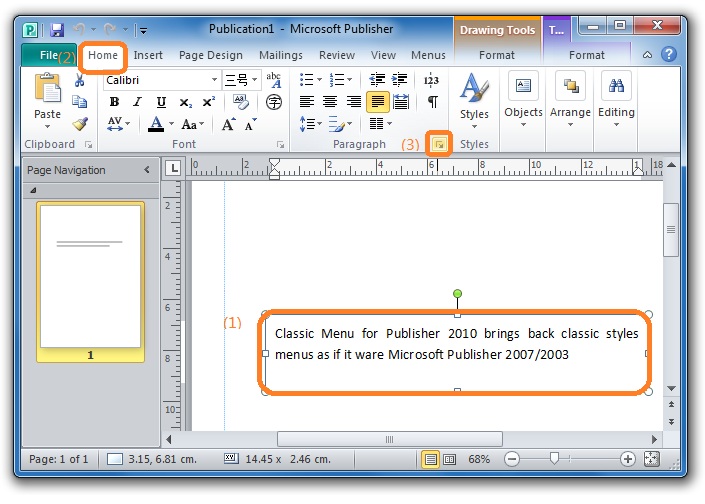
Figure 3
Classic Menu for Publisher will bring you back to the used classic style menus and toolbars, and make you work in Microsoft Publisher 2010 and 2013 as if it ware Microsoft Publisher 2007/2003. Classic Menus will save you time and money. Even no training, you can also work in new Office 2010 and 2013 quickly.

More Articles
What is Classic Menu for Office
The Classic Menu for Office 2010, 2013, 2016, 2019 and 365 Brings familiar classic menus and toolbars back to Microsoft Office 2010, 2013, 2016, 2019 and 365. You can use Office 2010/2013/2016 immediately and efficiently, and don't need any trainings or tutorials when upgrading to Microsoft Office (Word, Excel, Visio...) 2010/2013. The screen shot is as following.
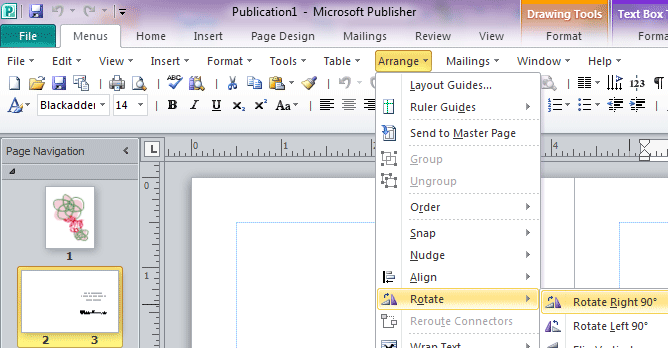
Classic Menu for OfficeIt includes Classic Menu for Word, Excel, PowerPoint, OneNote, Outlook, Publisher, Access, InfoPath, Visio and Project 2010, 2013, 2016, 2019 and 365.
|