Where is Shape Operations in Microsoft Visio 2010 and 2013
- It is much easier to find Shape Operations in Visio 2010/2013/2016/2019 if you are using Classic Menu for Office
- If you have not Classic Menu for Office (by customizing "not in the ribbon")
It is obviously hard to find the shape operations in the ribbon of Microsoft Visio 2010 and 2013. In fact, you can not find it diiectly in the ribbon, but need to customize before. With classic menu style, Classic Menu for Office Software allows you to find shape operstions like in Visio 2007 and Visio 2003.
 |
How to Bring Back Classic Menus and Toolbars to Office 2007, 2010, 2013, 2016, 2019 and 365? |
If you are using Classic Menu for Office...
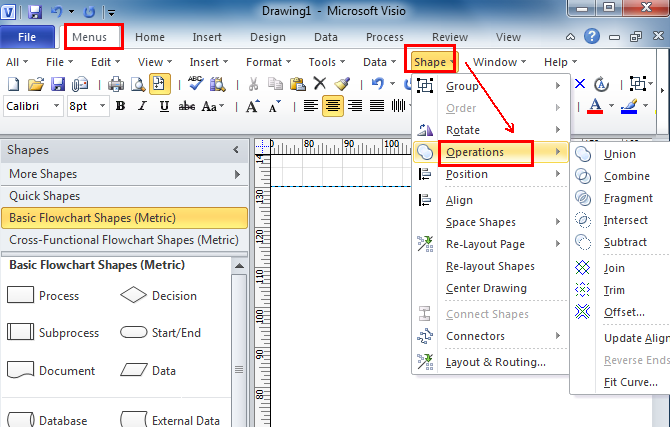
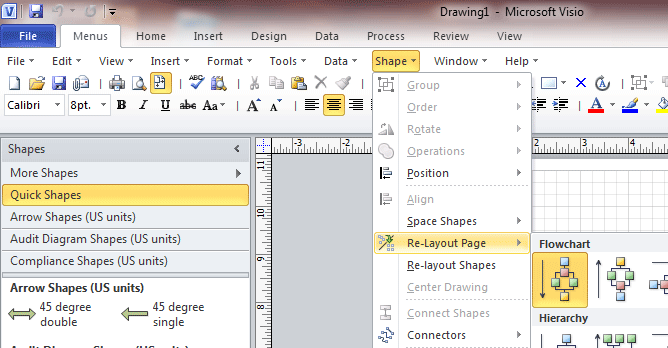
Under the Menus tab, go to Shape menu, and you can easily see the Operations from the Shape drop-down menu. All shape operations commands are listed in the level 2 drop-downl menu.
See it below:

If you have not using Classic Menu for Office...
It is also available to find shape operations in visio 2010 and 2013 without classic menu style interface. Shape Operations is not listed as a group on the ribbon any more, but scattered into many items in the box of Customize Not In the Ribbon. You have to follow the below instructions to find them.
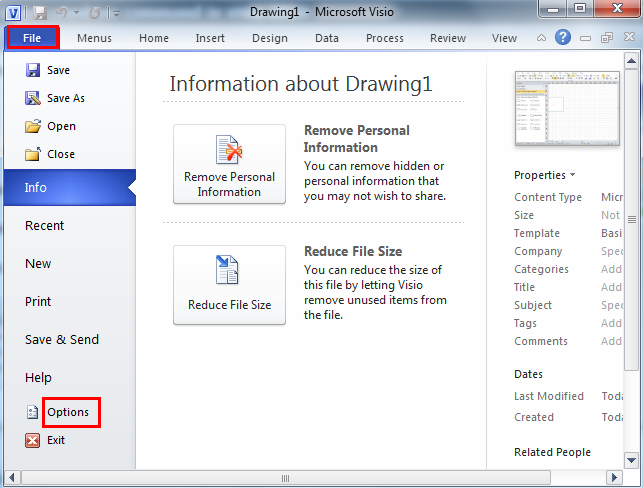
First, in Microsoft Visio 2010/2013, click File tab and then Options, it will bring up the Visio Options window.
Secondly, navigate to Customize Ribbon tab in Visio options window, select the Commands Not in the Ribbon from the Choose commands from drop-down menu. And scroll on to search what you want from shape operations. From the screen shot, you can see Shape Intersect, shape Join in the red box. Similarly, shape Union, Combine, Fragment, Subtract and Offset as well as Trim can be found there.
See it below:
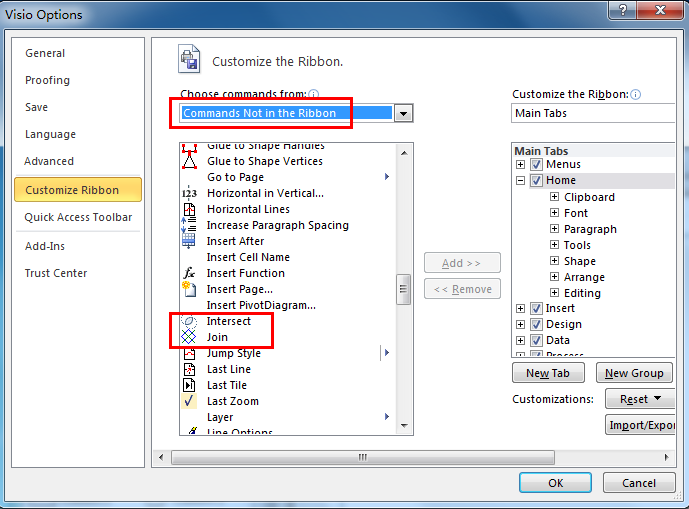
Then you can click New Group button to create a group where you can add the shape commands, to be intuitive, you can rename the new group as Shape Operations. And then choose Union, click Add button to add to the Shape Operations tab. Do the same to Combine, Subtract, Offset, Join, Fragment and Trim step by step. And finally click Ok button.
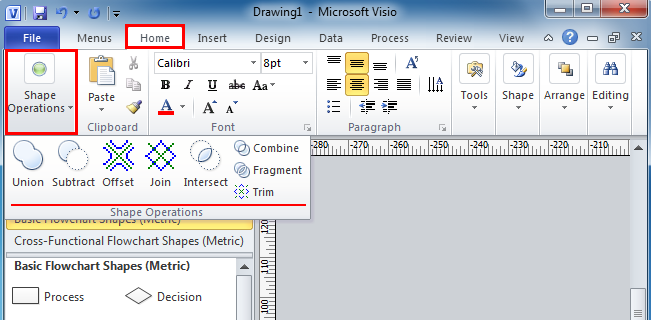
Go to Home tab, Shape Operations is listed as a group ahead. How amazing! You have customized and done it.
See it below:
What is Classic Menu for Office?
Classic Menu for Office 2010, 2013, 2016, 2019 and 365 is based on Micorsoft standard add-in technology, and designed for the users who are used to the interface of Office 2003/2002/2000. It shows the familiar classic menus and toolbars in Microsoft Office (includes Visio) 2010/2013, helps users get through the transition from 2003 to 2010, 2013, 2016, 2019 and 365, and saves money and time on training.
- All new features and commands of Visio 2010, 2013, 2016, 2019 and 365 have been added to the menus and toolbars;
- Without any training or tutorials after upgrading, users can work with Visio 2010/2013/2016 immediately.
Classic Menu for Office EnterpriseIt includes Classic Menu for Word, Excel, PowerPoint, OneNote, Outlook, Publisher, Access, InfoPath, Visio and Project 2010, 2013, 2016, 2019 and 365.
|