Where is the Borders and Shading in Word 2007, 2010, 2013, 2016, 2019 and 365?
- If you have Classic Menu for Word 2007/2010/2013/2016/2019 installed, you can…
- If you don't have Classic Menu for Word 2007/2010/2013/2016/2019 installed, you can…
Borders and shading is always used to decorate a text, which makes a plain article seems highlighted and well-organized. To apply the border in Word 2007, 2010, 2013, 2016, 2019 and 365 may be simple, but still be hard for user who recently upgrade from Word 2003 to 2007/2010/2013. This article mainly provides a way for users who are not familiar with the new ribbon interface.
 |
How to Bring Back Classic Menus and Toolbars to Office 2007, 2010, 2013, 2016 and 365? |
Use the familiar Word 2003 style in working with Word 2007, 2010, 2013, 2016, 2019 and 365 if you have Classic Menu for Word 2007/2010/2013/2016/2019 installed.
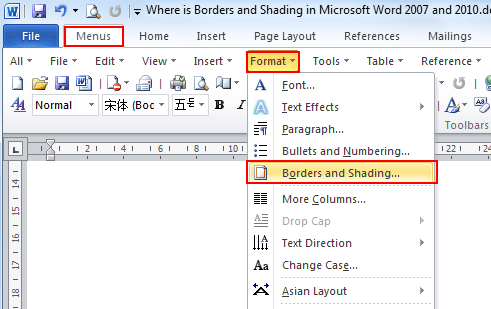
Just take Microsoft Word 2010 for example, which is as well as in Word 2007/2013. With Classic Menu for Word 2007/2010/2013/2016/2019 installed, you can click Menus tab to get back the classic style interface.
- Select the text you need to apply borders or shading
- Click Menus tab
- Move to Format menu
- Choose Borders and Shading in the drop down menu
- A window pop up for you to specify the Borders and Shading
If you have not Classic Menu for Word 2007/2010/2013/2016/2019 installed, you can …
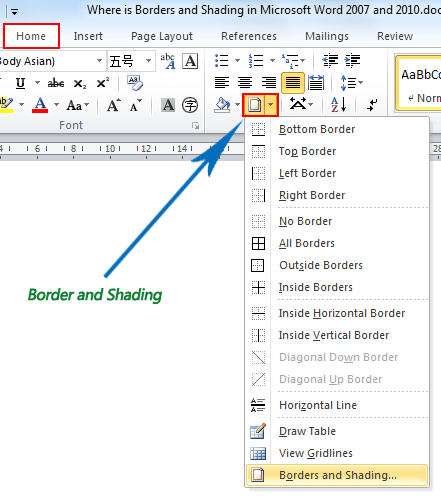
Method A:
- Click Home tab
- Move to Paragraph group
- Find out the Border and Shading button, and click the down arrow next to it
- Choose the Border and Shading option, or specify the different border style
Method B:
- Click Page Layout tab
- Go to Page background group
- Click the Page Borders, you may see the Borders and Shading window popping up
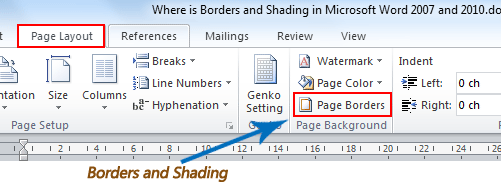
More Tips
What is Classic Menu for Office
The software Classic Menu for Office is designed for the people who are accustomed to the old interface of Microsoft Office 2003, XP (2002) and 2000. It brings back the classic menus and toolbars to Microsoft Office (includes Word) 2007, 2010, 2013, 2016, 2019 and 365. The classic view helps the people to smoothly upgrade to the latest version of Office, and work with Office 2007/2010/2013/2016 as if it were Office 2003 (and 2002, 2000).
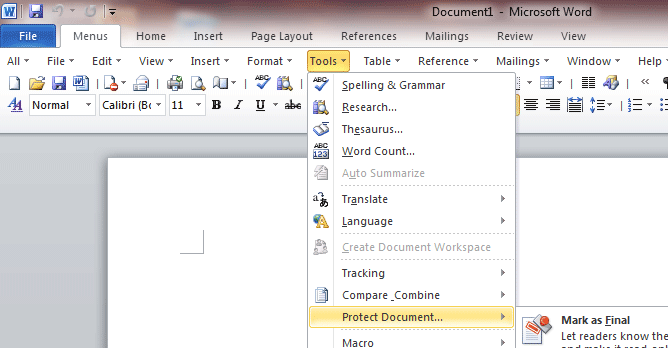
Screen Shot of Classic Menu for Word
- All new features and commands of Office 2007, 2010, 2013, 2016, 2019 and 365 have been added to the menus and toolbars;
- Without any training or tutorials after upgrading, users can work with Office 2007/2010/2013/2016 immediately;
- Easy to find any command items you want to process;
- Easy to show or hide the classic menus, toolbars and ribbon tabs;
- Easy to install and use. Supports all languages. Free download!
Classic Menu for OfficeIt includes Classic Menu for Word, Excel, PowerPoint, OneNote, Outlook, Publisher, Access, InfoPath, Visio and Project 2010, 2013, 2016, 2019 and 365.
|
||
 |
Classic Menu for Office 2007It includes Classic Menu for Word, Excel, PowerPoint, Access and Outlook 2007.
|