Where are Forms Toolbar and Combo Box in Excel 2007, 2010, 2013, 2016, 2019 and 365
 |
How to Bring Back Classic Menus and Toolbars to Office 2007, 2010, 2013, 2016, 2019 and 365? |
Easy to find out the Forms Toolbar and Combo Box if you have Classic Menu
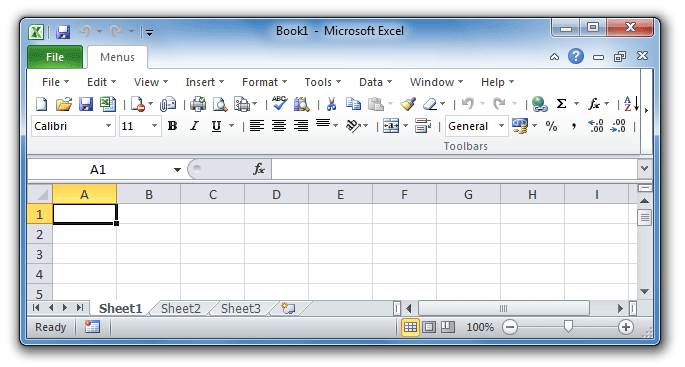
If you have installed Classic Menu for Office on your computer, you can find out most features and commands staying in the same place as those in Office 2003. You can easily find out the Forms Toolbar and Combo Box from classic menus:
- Click the Tools drop down menu under Menus tab;
- Click the Controls item;
- Click the Insert item;
- Then you will view the Form Controls buttons, that’s original Forms Toolbar.
Under the Form Controls, the second button  is Combo Box command.
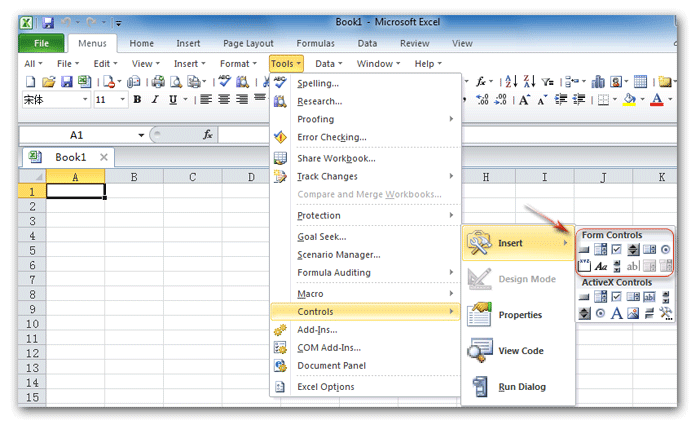
Figure 1: Forms Toolbar and Combo Box in Classic Menu
More Classic Menu for Office...
If you do not have Classic Menu
In Microsoft Excel 2007/2010/2013/2016/2019 Ribbon, it is hard to find out the Forms Toolbar and Combo Box commands. That’s because it is moved into Developer tab, which is not in Ribbon:
- Firstly of you need to add Developer Tab into Microsoft Excel 2010 or 2007 Ribbon. Here are two tips:
How to add Developer Tab into Excel 2007 Ribbon?
How to add Developer Tab into Excel 2010/2013/2016/2019 Ribbon? - Click the Developer tab;
- Go to the Control group;
- Then you will view Insert button. Click it, and you will view the Form Controls buttons, that’s original Forms Toolbar in Excel 2003.
The second button under Form Controls is Combo Box command.
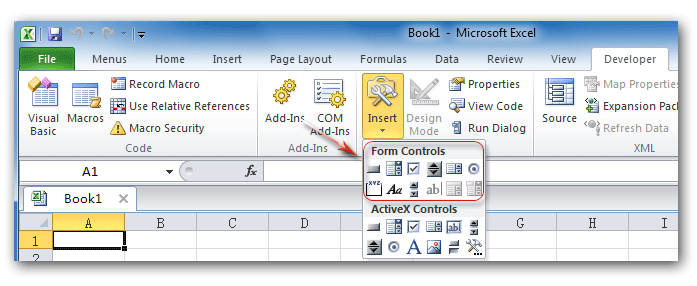
Figure 2: Forms Toolbar and Combo Box in Ribbon
Classic Menu for Office
Brings the familiar classic menus and toolbars back to Microsoft Office 2007, 2010, 2013, 2016, 2019 and 365. You can use Office 2007/2010/2013/2016 immediately without any training. Supports all languages, and all new commands of 2007, 2010, 2013, 2016, 2019 and 365 have been added into the classic interface.
Classic Menu for OfficeIt includes Classic Menu for Word, Excel, PowerPoint, OneNote, Outlook, Publisher, Access, InfoPath, Visio and Project 2010, 2013, 2016, 2019 and 365.
|
||
 |
Classic Menu for Office 2007It includes Classic Menu for Word, Excel, PowerPoint, Access and Outlook 2007.
|