Where is About in Microsoft Office 2007, 2010, 2013, 2016, 2019 and 365?
- Easily get About in Office 2007, 2010, 2013, 2016, 2019 and 365 if you have Classic Menu for Office
- About in Office 2010 Ribbon
- About in Office 2007 Ribbon
- About in Office 2013 (includes Office 365)
In Microsoft Office 2007/2010/2013/2016/2019 applications, you can follow the similar way to find out About information. Here we will take Microsoft Word for example, and show where the About information in Word 2007, 2010, 2013, 2016, 2019 and 365.
It is similar to find out the About Information in other Microsoft Office 2007/2010/2013/2016/2019 (includes Office 365) applications.
 |
How to Bring Back Classic Menus and Toolbars to Office 2007, 2010, 2013, 2016, 2019 and 365? |
Easily get About in Office 2007, 2010, 2013, 2016, 2019 and 365 if you have Classic Menu for Office
Classic Menu for Office will bring back classic style menus and toolbars, and make your work easily and efficiently. Classic Menu for Office will be fit for your use habit in Microsoft Office 2003/XP(2002)/2000. So you can get About feature in Office 2007/2010/2013/2016/2019 (includes Office 365) with the same way you did in Office 2003/XP(2002)/2000. Take Microsoft Word 2010 for example:
- Click the Help drop down menu in main menus;
- Select the About Microsoft Word (Or Excel, PowerPoint…)
- Then you will view the About window.
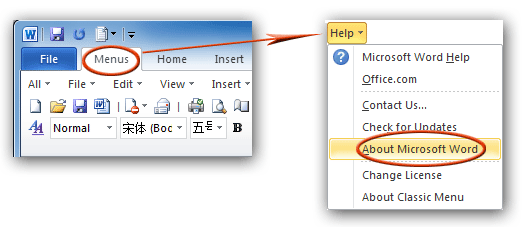
Figure 1: About in Classic Menu
You can also get the About in other Microsoft Office 2007, 2010, 2013, 2016, 2019 and 365 applications with the same way, such as Micrsoft Excel, PowerPoint, Outlook, Access, Publisher, InfoPath, Project, and Visio.
Get About in Office 2010 if you do not have Classic Menu for Office
As a novice at Office 2010, it may be difficult to get About feature at the beginning. Please do not worry about it. Here we list the method to help you get About in Office 2010:
- Click the File tab, and go into backstage view;
- Click the Help button at left bar;
- Go to the right side, you will find the About Microsoft Office 2010 information, such as the version, Product ID, and more.
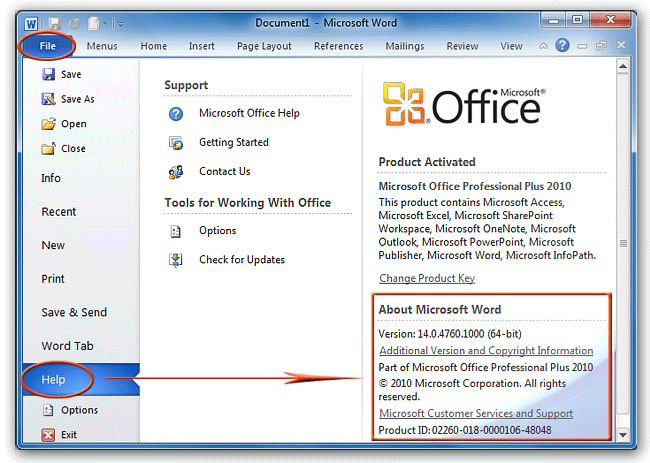
Figure 2: About in Office 2010 Ribbon
Get About in Office 2007 if you do not have Classic Menu for Office
If you have problem with the About feature in Microsoft Office 2007, the following method may help you:
- Click the Office button;
- Click the Word Option at the button (it may be Excel Options, PowerPoint Options, Outlook Options...);
- Then the Word Option dialog open, go on to click the Resources button at the left bar;
- At the bottom right, you will view the About button. Click the About button and you will view About window popping up.
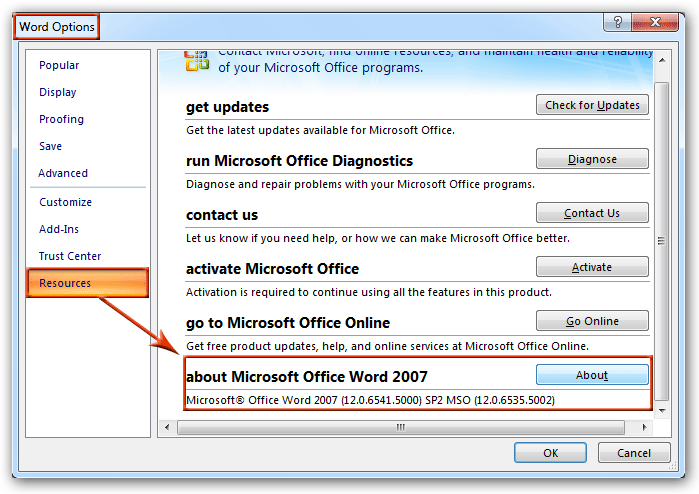
Figure 3: About in Office 2007 Ribbon
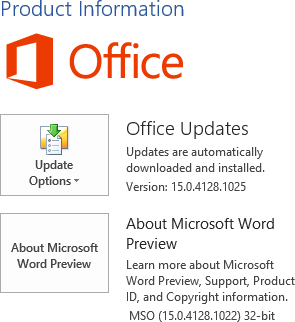
About in Office 2013 (includes Office 365)
Please click File > Account, and the "About Microsoft Word" is on the right side. As follows:

Classic Menu for Office
Brings your familiar old menus and toolbars of Office 2003 (2002, 2000) back to Microsoft Office 2007, 2010, 2013 and 365. You can use Office 2007/2010/2013/2016 (includes Office 365) immediately and efficiently, and don't need any trainings or tutorials when upgrading to Microsoft Office (includes Word, Excel, and more ...) 2007, 2010 or 2013.
Screen Shot of Classic Menu for Word
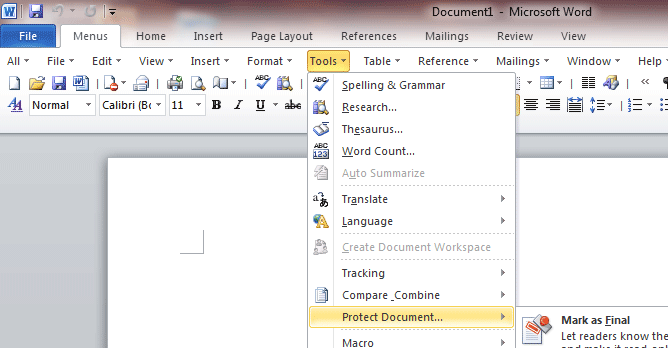
Classic Menu for OfficeIt includes Classic Menu for Word, Excel, PowerPoint, Access, Outlook, OneNote, Publisher, InfoPath, Visio and Project 2010, 2013, 2016, 2019 and 365 (includes Office 365).
|
||
 |
Classic Menu for Office 2007It includes Classic Menu for Word, Excel, PowerPoint, Access and Outlook 2007.
|