Where is Form Toolbar in Microsoft Office 2007, 2010, 2013, 2016, 2019 and 365?
- Familiar method to get Form Toolbar if you have Classic Menu for Office
- Get Form Toolbar in Office 2007 Ribbon
- Get Form Toolbar in Office 2010, 2013, 2016, 2019 and 365 Ribbon
The Form Toolbar disappeared, and we can’t get the Form Toolbar in Ribbon quickly. It is hard to edit our forms without these useful buttons, functionalities, and features. For working efficiently in future, it is quite necessary to find out them. Here are two methods for you to discover the Form Toolbar in Microsoft Office 2007, 2010, 2013, 2016, 2019 and 365:
 |
How to Bring Back Classic Menus and Toolbars to Office 2007, 2010, 2013, 2016, 2019 and 365? |
Familiar method to get Form Toolbar if you have Classic Menu for Office
Classic Menu for Office will bring back your familiar working environment of Microsoft Office 2003. So that you can get Form Toolbar with familiar way at ease:
- Click the Tools drop down menu in main menus;
- Click the Control item;
- Continue to click the Legacy Tools;
- Then you will view the several buttons under Legacy Forms. The Legacy Forms and its buttons are the Form Toolbar of Microsoft Office 2003.
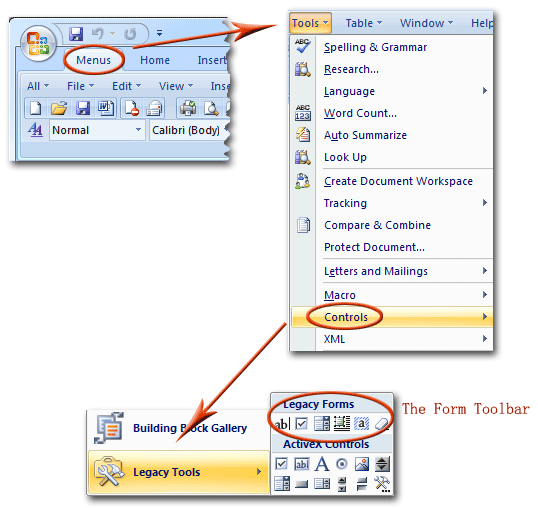
Figure 1: Form Toolbar in Classic Menu

Get Form Toolbar in Office 2007 if you do not have Classic Menu for Office
It is quite hard to find out the Form Toolbar in Ribbon if you are a beginner of Microsoft Office 2010 or 2007. The Form Toolbar is hidden deeply in Ribbon, and patience is needed to dig it.
Firstly we need to show Developer Tab in Ribbon in PowerPoint 2007:
- Click the Office button;
- Click the Word Options at the bottom;
- Then you will enter into Word Options dialog, click the Popular button at the left bar;
- Check the Show Developer tab in the Ribbon item under Top options for working with Word;
- Click the Ok button at the bottom;
- Now the Developer tab will be added into the far right in Ribbon.
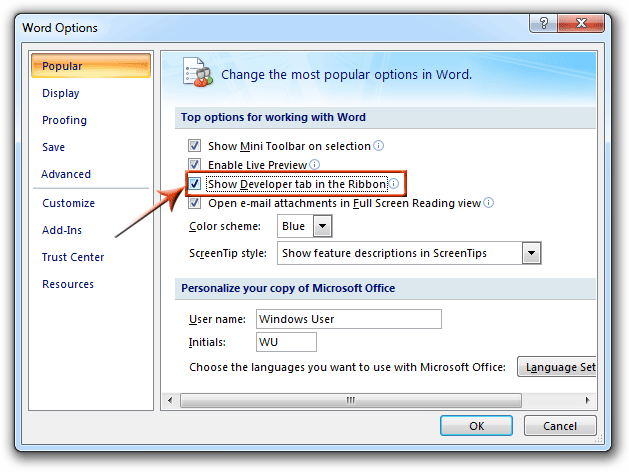
Figure 2: Add Developer tab into Office 2007 Ribbon
After the developer tab showing in Ribbon:
- Go to the Developer tab;
- Move to the Control group;
- Click the Legacy drop down button, then you will view the Legacy Forms buttons. These buttons are Form Toolbar buttons.
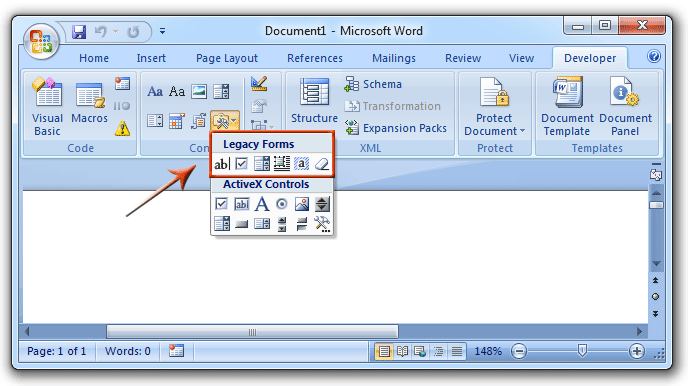
Figure 3: Form Toolbar in Office 2007 Ribbon
Get Form Toolbar in Office 2010/2013/365 if you do not have Classic Menu for Office
It is also very difficult to discover Form Toolbar in Office 2010/2013/365. What’s worse, you won’t find out Form Toolbar with the method we described above. Here lists the method to get Form Toolbar in Office 2013:
- Click the File tab in the Ribbon, and you will view backstage view;
- Click the Options button at left bar;
- Then the Word Options dialog pops up (It may also be Excel Options, PowerPoint Options…).
- Click the Customize Ribbon button at left bar;
- You can locate the "Developer" on the right side, please check it and click OK.
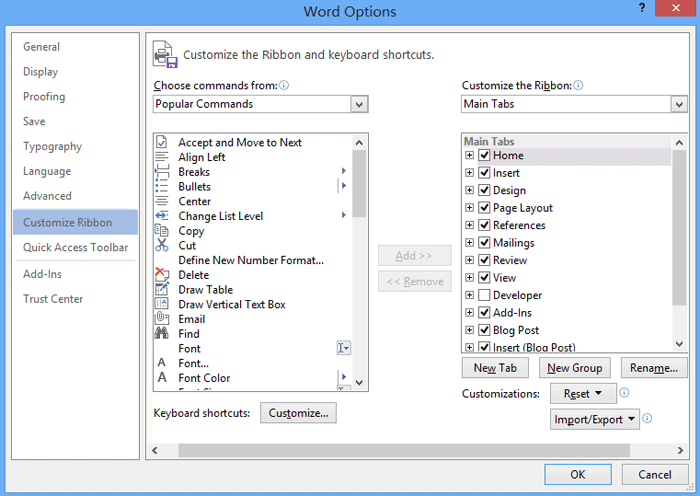
Figure 4: Add Developer Tab into Office 2013 Ribbon
Then you will view that the Developer tab is added after View tab. Go to the Controls group under Developer tab, click the Click the Legacy drop down button, then you will view the Legacy Forms buttons. These buttons are Form Toolbar buttons.
More tips for Microsoft Office 2007, 2010, 2013 and 365
- Where is Office 2007 Classic View
- Where is Office 2010, 2013, 2016, 2019 and 365 Classic View
- Where are Office 2007 Toolbars and Menus
- Where is Office 2010, 2013, 2016, 2019 and 365 Menu and Toolbar
- Where is File Menu
- Where is Format Menu
- Where is Tools menu
- More...
Classic Menu for Office
Brings your familiar old menus and toolbars of Office 2003 (2002, 2000) back to Microsoft Office 2007, 2010, 2013 and 365. You can use Office 2007/2010/2013/2016 (includes Office 365) immediately and efficiently, and don't need any trainings or tutorials when upgrading to Microsoft Office (includes Word, Excel, and more ...) 2007, 2010 or 2013.
Screen Shot of Classic Menu for Word
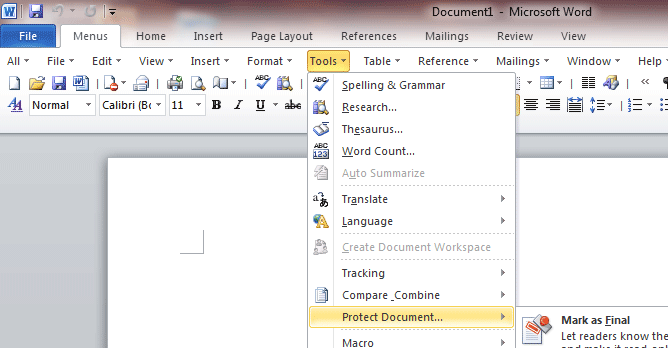
Classic Menu for OfficeIt includes Classic Menu for Word, Excel, PowerPoint, Access, Outlook, OneNote, Publisher, InfoPath, Visio and Project 2010, 2013, 2016, 2019 and 365 (includes Office 365).
|
||
 |
Classic Menu for Office 2007It includes Classic Menu for Word, Excel, PowerPoint, Access and Outlook 2007.
|