Where is Account Settings in Microsoft Outlook 2010 and 2013?
- Find Account Settings in Outlook 2010 and 2013 if you are using Classic Menu for Office
- If you have not Classic Menu for Office (Method: on File tab)
Sometimes your account server may change, or you want to add a new e-mail address to your Outlook 2010/2013, at this time, Account Settings leads the role. This article is telling you how to find the Account Settings in the ribbon of Microsoft Outlook 2010 and 2013, whether you have classic menus and toolbar or not.
 |
How to Bring Back Classic Menus and Toolbars to Office 2007, 2010, 2013, 2016 and 365? |
If you are using Classic Menu for Office...
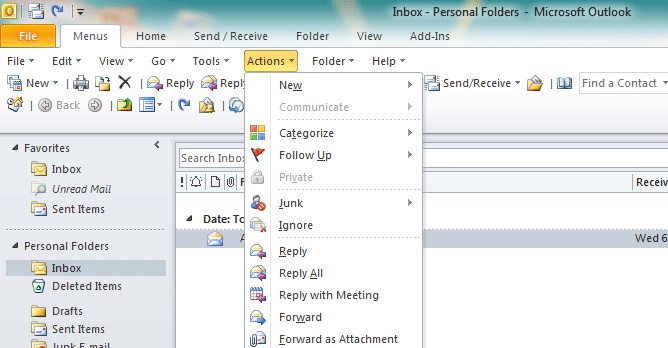
On Menus tab, you can obviously see Tools menu next to Actions menu on the toolbar. Click Tools to bring up the tools drop-down menu and you can see Account Settings at the bottom.
See it below:
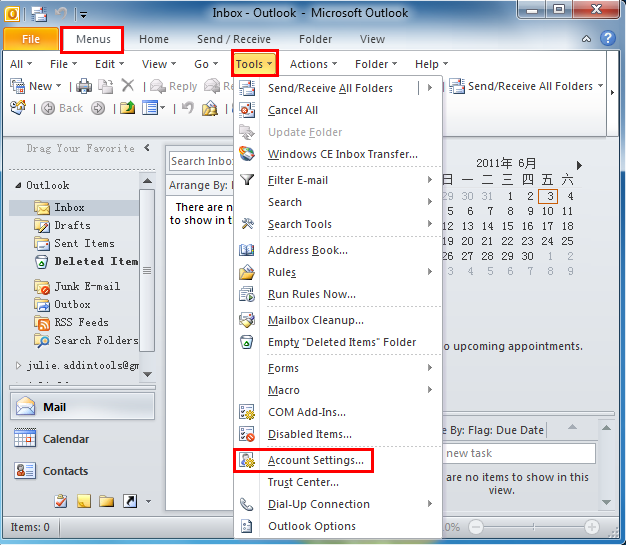
1. Click Account Settings;
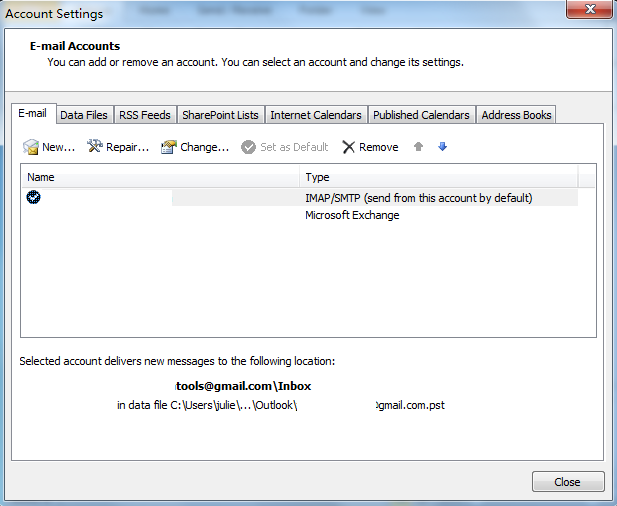
2. In the Account Settings window, you can customize the acccount settings, such as how your name is displayed to other peopler, you can also add or remove an account on the Email tab.

If you are not using Classic Menu for Office...
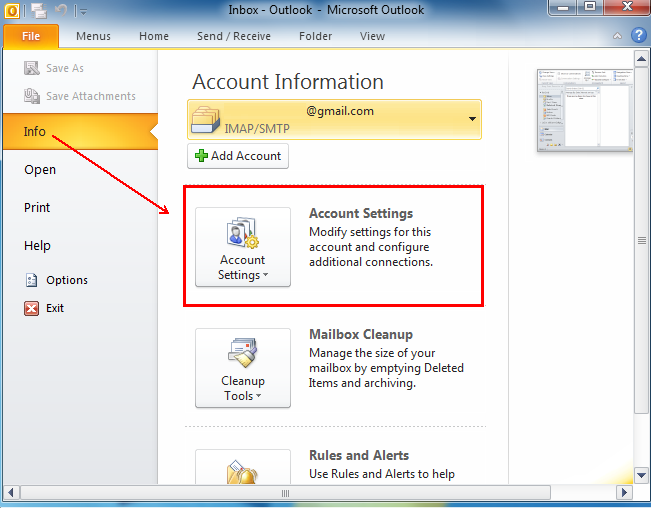
In Microsoft Outlook 2010 and 2013, on the File tab, Select Info and under Account Information panel you can see Account Settings options, where you can create a new account, remove an account, modify settings for this account and configure additional connections.
See it below:
What is Classic Menu for Office/Outlook
Brings the familiar classic menus and toolbars back to Microsoft Office 2007, 2010, 2013, 2016, 2019 and 365, helps users get through the transition from Office 2003 (or 2002, 2000) to Office 2007, 2010 or 2013, and saves your money and energy on training if you are upgrading your Office.
Classic Menu for OfficeIt includes Classic Menu for Word, Excel, PowerPoint, Access, Outlook, OneNote, Publisher, InfoPath, Visio and Project 2010, 2013, 2016, 2019 and 365.
|
||
 |
Classic Menu for Office 2007It includes Classic Menu for Word, Excel, PowerPoint, Access and Outlook 2007.
|