Where is the Tools Menu in Microsoft Word 2007, 2010, 2013, 2016, 2019 and 365
The key feature of new ribbon interface in Word 2007, 2010, 2013, 2016, 2019 and 365 is that all the menus and toolbars of Word 2003, 2002, and 2000 have been categorized and organized in multiple tabs. In other words, because the items have been grouped under different tabs, the tools menu does not exist any longer.
 |
How to Bring Back Classic Menus and Toolbars to Office 2007, 2010, 2013, 2016 and 365? |
If you try to find any items of the old tools menu in Word 2007, 2010, 2013, 2016, 2019 and 365, please see the following solutions.
Solutions
Solution A: Restore the tools menu. If you are accustomed to the old style menus and toolbars of Office 2003, XP(2002) and 2000, the Classic Menu for Office is perfect for you. It brings back the old menus and toolbars to Word 2007, 2010, 2013, 2016, 2019 and 365. All new features of 2007/2010/2013/2016/2019 have been added into it. Know more...
Solution B: Locate every item (of tools menu) one by one on the new ribbon interface. If you like the new ribbon interface of Word 2007, 2010 or 2013, and want to locate certain functions on the ribbon, please browse the following tables (Location in Word 2007 and Location in Word 2010/2013). They indicate the new location of different items from the tools menu.
- A: Tools Menu
- B1: Location in Word 2007
- B2: Location in Word 2010/2013
Tools Menu of Word 2003 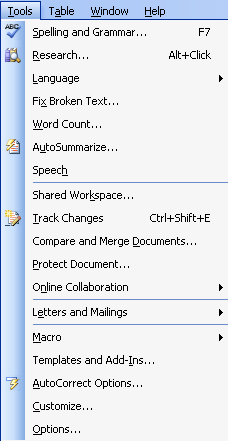 |
Tools Menu of Classic Menu for Word 2007 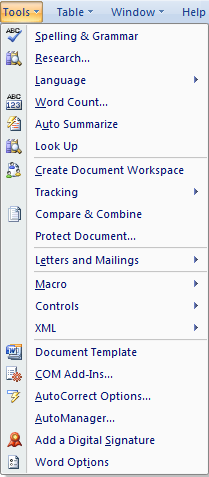 |
Tools Menu of Classic Menu for Word 2010 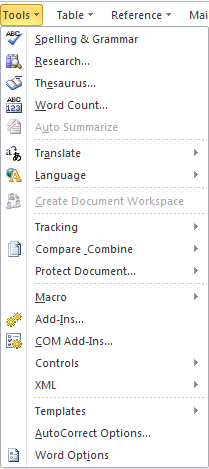 |
The Difference of Tools Menu in Word 2003, Word 2007 and Word 2010
| Word 2003 (2002/2000) Location | Word 2007 Location |
| Spelling and Grammar | Review | Proofing | Spelling & Grammar |
| Spelling and Grammar | Blog Post | Proofing | Spelling |
| Research | Review | Proofing | Research |
| Research | Blog Post | Proofing | Spelling | Research |
| Language (Set Language) | Review | Proofing | Set Language |
| Language (Set Language) | Blog Post | Proofing | Spelling | Set Language |
| * Language (Japanese Consistency Checker) | Review | Proofing | Japanese Consistency Checker |
| * Language (Hangul Hanja Conversion) | Review | Proofing | Hangul Hanja Conversion |
| * Language (Hangul Hanja Conversion) | Blog Post | Proofing | Spelling | Hangul Hanja Conversion |
| * Language (Chinese Translation - Translate with Options) | Review | Chinese Translation | Translate with Options |
| * Language (Chinese Translation - Translate with Options) | Blog Post | Proofing | Spelling | Translate with Options |
| Language (Translate) | Review | Proofing | Translate |
| Language (Translate) | Blog Post | Proofing | Spelling | Translate |
| Language (Thesaurus) | Review | Proofing | Thesaurus |
| Language (Thesaurus) | Blog Post | Proofing | Spelling | Thesaurus |
| Language (Hyphenation) | Page Layout | Page Setup | Hyphenation | Hyphenation Options |
| * Fix Broken Text | Available as a download from the Office Online Web site |
| Word Count | Review | Proofing | Word Count |
| Word Count | Blog Post | Proofing | Spelling | Word Count |
| AutoSummarize | Office Button | Word Options | Customize | All Commands | AutoSummary Tools |
| Look Up Reference | Right-click in a word, and then click Look Up |
| Speech | Removed from product |
| Shared Workspace | File | Publish | Create Document Workspace |
| Track Changes | Review | Tracking | Track Changes |
| Compare and Merge Documents | Review | Compare | Compare | Compare |
| Compare and Merge Documents | Review | Compare | Compare | Combine |
| Protect Document | Developer | Protect | Protect Document |
| Protect Document | Review | Protect | Protect Document |
| Online Collaboration (Meet Now) | Removed from product |
| Online Collaboration (Schedule Meeting) | Removed from product |
| Online Collaboration (Web Discussions) | Removed from product |
| Online Collaboration (End Review) | Removed from product |
| Letters and Mailings (Mail Merge) | Mailings | Start Mail Merge | Start Mail Merge | Step by Step Mail Merge Wizard |
| Letters and Mailings (Show Mail Merge Toolbar) | Toolbars have been removed from the product. To find commands on the Mail Merge toolbar, go to the Mail Merge Toolbar sheet of this workbook. |
| * Letters and Mailings (Show Japanese Greetings Toolbar) | Toolbars have been removed from the product. To find commands on the Japanese Greetings toolbar, go to the Japanese Greetings Toolbar sheet of this workbook. |
| * Letters and Mailings (Japanese Postcard Wizard) | Mailings | Create | Japanese Postcard Wizard |
| Letters and Mailings (Envelopes and Labels) | Mailings | Create | Envelopes |
| Letters and Mailings (Envelopes and Labels) | Mailings | Create | Labels |
| * Letters and Mailings (Chinese Envelope Wizard) | Mailings | Create | Chinese Envelope |
| Letters and Mailings (Letter Wizard) | Removed from product |
| Macro (Macros) | Developer | Code | Macros |
| Macro (Macros) | View | Macros | Macros |
| Macro (Record New Macro) | Developer | Code | Record Macro / Stop Recorder |
| Macro (Record New Macro) | View | Macros | Macros | Record Macro / Stop Recorder |
| Macro (Security) | Developer | Code | Macro Security |
| Macro (Visual Basic Editor) | Developer | Code | Visual Basic |
| Macro (Microsoft Script Editor) | Removed from product |
| Templates and Add-Ins | Developer | Templates | Document Template |
| AutoCorrect Options | Office Button | Word Options | Proofing | AutoCorrect Options |
| Customize | Office Button | Word Options | Customize |
| Show Signature | Office Button | Finish | Add a Digital Signature |
| Options | Office Button | Word Options |
| Word 2003 (2002/2000) Location | Word 2010/2013/2016/2019 Location |
| AutoCorrect Options | File | Options | Customize Ribbon | All Commands | AutoCorrect Options |
| AutoSummarize | Removed from Product |
| Compare and Merge Documents | File | Options | Customize Ribbon | All Commands | Compare & Combine |
| Compare and Merge Documents | Review | Compare | Compare | Compare |
| Customize | File | Options | Customize Ribbon | All Commands | Customize the Ribbon |
| Customize | Quick Access Toolbar | Customize Quick Access Toolbar | More Commands |
| Fix Broken Text | Removed from Product |
| Language | Review | Language |
| Language | Hangul Hanja Conversion | Review | Language | Hangul Hanja Conversion |
| Language | Hyphenation | Page Layout | Page Setup | Hyphenation | Hyphenation Options |
| Language | Set Language | Review | Language | Language | Set Proofing Language |
| Language | Thesaurus | Review | Proofing | Thesaurus |
| Language | Translate | Review | Language | Translate |
| Language | Translate | Review | Language | Translate | Translate Document |
| Letters and Mailings | Chinese Envelope Wizard | Mailings | Create | Chinese Envelope |
| Letters and Mailings | Envelopes and Labels | File | Options | Customize Ribbon | All Commands | Envelope & Label Wizard |
| Letters and Mailings | Envelopes and Labels | Mailings | Create | Envelopes |
| Letters and Mailings | Envelopes and Labels | Mailings | Create | Labels |
| Letters and Mailings | Japanese Postcard Wizard | File | Options | Customize Ribbon | All Commands | Japanese Postcard |
| Letters and Mailings | Japanese Postcard Wizard | Mailings | Create | Japanese Postcard |
| Letters and Mailings | Letter Wizard | Removed from Product |
| Letters and Mailings | Mail Merge | Mailings | Start Mail Merge | Start Mail Merge | Step by Step Mail Merge Wizard |
| Letters and Mailings | Show Japanese Greetings Toolbar | Removed from Product |
| Letters and Mailings | Show Mail Merge Toolbar | Removed from Product |
| Look Up Reference | Right-click a word, and then click Look Up. |
| Macro | View | Macros |
| Macro | Macros | Developer | Code | Macros |
| Macro | Macros | View | Macros | Macros | View Macros |
| Macro | Macros | View | Macros | View Macros |
| Macro | Microsoft Script Editor | Removed from Product |
| Macro | Record New Macro | Developer | Code | Record Macro / Stop Recorder |
| Macro | Record New Macro | View | Macros | Macros | Record Macro / Stop Recorder |
| Macro | Security | Developer | Code | Macro Security |
| Macro | Visual Basic Editor | Developer | Code | Visual Basic |
| Online Collaboration | End Review | File | Options | Customize Ribbon | All Commands | End Review |
| Online Collaboration | Meet Now | Removed from Product |
| Online Collaboration | Schedule Meeting | Removed from Product |
| Online Collaboration | Web Discussions | Removed from Product |
| Options | File | Options |
| Research | Review | Proofing | Research |
| Shared Workspace | Removed from Product |
| Show Signature | File | Info | View Signatures |
| Speech | Removed from Product |
| Spelling | File | Options | Customize Ribbon | All Commands | Spelling & Grammar |
| Spelling | Customize Quick Access Toolbar | Spelling & Grammar |
| Spelling | Review | Proofing | Spelling & Grammar |
| Templates and Add-Ins | File | Options | Add-Ins | Manage | COM Add-ins |
| Templates and Add-Ins | File | Options | Add-Ins |Manage | Templates |
| Track Changes | Review | Tracking | Track Changes |
| Track Changes | Review | Tracking | Track Changes | Track Changes |
| Word Count | Review | Proofing | Word Count |
More Tips
What is Classic Menu for Office
The software Classic Menu for Office is designed for the people who are accustomed to the old interface of Microsoft Office 2003, XP (2002) and 2000. It brings back the classic menus and toolbars to Microsoft Office (includes Word) 2007, 2010, 2013, 2016, 2019 and 365. The classic view helps the people to smoothly upgrade to the latest version of Office, and work with Office 2007/2010/2013/2016 as if it were Office 2003.
- All new features and commands of Office 2007, 2010, 2013, 2016, 2019 and 365 have been added to the menus and toolbars;
- Without any training or tutorials after upgrading, users can work with Office 2007/2010/2013/2016 immediately;
- Easy to show or hide the classic menus, toolbars and ribbon tabs;
- Easy to install and use. Supports all languages. Free download!
- Easy to deploy to all computers in your company.
Classic Menu for Office 2007(Includes Classic Menu for Word, Excel, PowerPoint, Access and Outlook 2007)
|
Classic Menu for Office(Includes Classic Menu for Word, Excel, PowerPoint, Access, Outlook, InfoPath, Publisher, Visio and Project 2010, 2013, 2016, 2019 and 365)
|


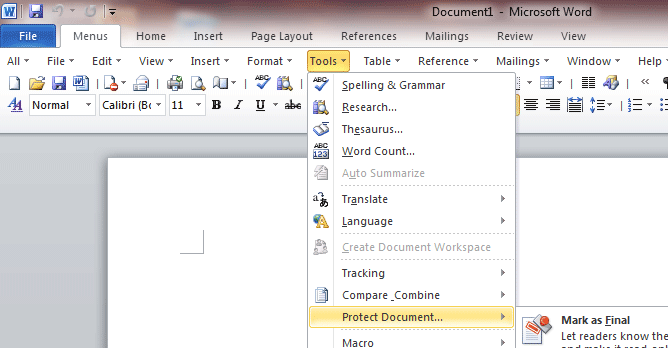
Screen Shot of Classic Menu for Word