Where is Switchboard Manager in Microsoft Access 2007, 2010, 2013, 2016, 2019 and 365
- Easily get Switchboard Manager if you have Classic Menu
- Look for Switchboard Manager in Access 2010/2013/2016/2019 Ribbon
- Look for Switchboard Manager in Access 2007 Ribbon
If you want to run reports with navigational screens around database and perform task, Switchboard is the right thing for you. Here lists three methods to seek for Switchboard Manager in Microsoft Access 2007/2010/2013.
 |
How to Bring Back Classic Menus and Toolbars to Office 2007, 2010, 2013, 2016, 2019 and 365? |
Easily get Switchboard Manager if you have Classic Menu
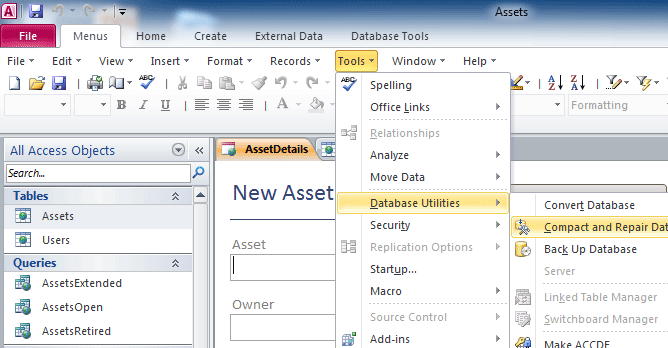
If you have installed Classic Menu for Office, you can get Switchboard Manager in Microsoft Access 2007, 2010, 2013, 2016, 2019 and 365 with the same way that you did in Access 2003/2002/2000:
- Click the Tools drop down menu in main menus;
- Click the Database utilities item;
- Then you will view the Switchboard Manager sub-item.
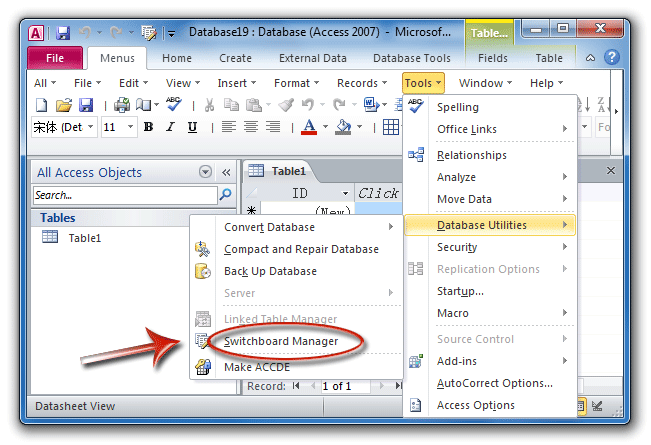
Figure 1: Switchboard Manager in Classic Menu

Look for Switchboard Manager in Access 2010/2013/2016/2019 Ribbon if you do not have Classic Menu
You will find out that the Switchboard Manager feature disappeared from Ribbon. In fact the Switchboard Manager is not listed on the Ribbon. So you may need to customize the Ribbon, and add Switchboard Manager into QAT (Quick Access Toolbar):
- Step 1: Firstly click the File tab and Options button, then you will get into Access Options window;
- Step 2: Click the Quick Access Toolbar at left bar;
- Step 3: In the Choose commands from drop down box, select the Commands Not in the Ribbon item;
- Step 4: Select the Switchboard Manager item in the command list box;
- Step 5: Click the Add button;
- Step 6: At last click the Ok button at the bottom.
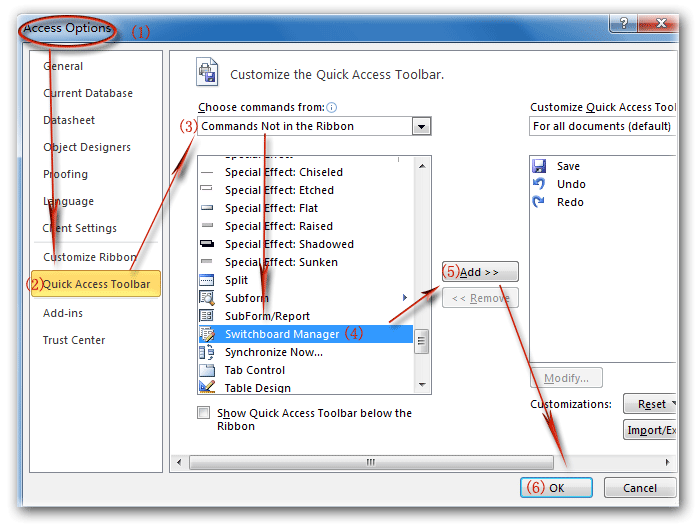
Figure 2: Add Switchboard Manager into Access 2010 Ribbon
Then go to the Access window, you will view the Switchboard Manager button has been added into QAT at the top of Access Window.
Look for Switchboard Manager in Access 2007 Ribbon if you do not have Classic Menu
In fact it is very easy to find out the Switchboard Manager button in Access 2007 ribbon:
- Click the Database Tools tab;
- Go to the Database Tools group;
- Then you will view the Switchboard Manager button.
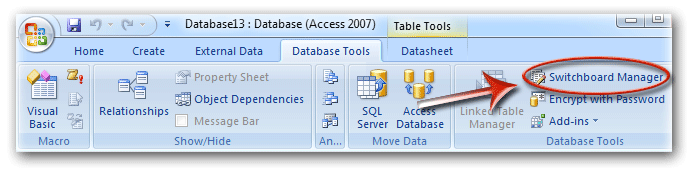
Figure 3: Switchboard Manager in Access 2007 Ribbon
More tips for Microsoft Access
- Where is Compact and Repair
- Where is Convert Database
- Where is Create Query
- Where is Design View
- Where is Field List
- Where is Form
- Where is Help
- Where is Linked Table Manager
- Where is Lookup Wizard
- Where is MDB Save As
- Where is Message Bar
- Where is Navigation Pane
- Where is Security
- Where is Startup
- Where is Switchboard Manager
- Where is Workgroup Manager
Classic Menu for Office
Frustrated by endless searches for commands on the ribbon interface of Access? The Classic Menu for Office brings back the familiar menus and toolbars to Microsoft Access 2007, 2010, 2013, 2016, 2019 and 365. The classic view allows you to work with Office 2010/2013/2016 as if it were Office 2003/2002/2000.
- All new features and commands for Access 2007, 2010, 2013, 2016, 2019 and 365 have been added to the menus and toolbars.
- You can still enjoy many features of Access 2003 that have been removed from Access 2007, 2010, 2013, 2016, 2019 and 365.
- You won't need any training or tutorials after upgrading to Microsoft Access 2007, 2010 or 2013.
Classic Menu for OfficeIt includes Classic Menu for Word, Excel, PowerPoint, Access, Outlook, Publisher, InfoPath, Visio and Project 2010, 2013, 2016, 2019 and 365.
|
||
 |
Classic Menu for Office 2007It includes Classic Menu for Word, Excel, PowerPoint, Access and Outlook 2007.
|