Where is Password Protect in Microsoft Excel 2007, 2010, 2013, 2016, 2019 and 365?
Would you like to encrypt workbooks or worksheets in Excel 2007/2010/2013, but you can’t figure out where the Password Protect command has been located in the ribbon interface? Don’t worry about it. You can quickly access this command by according to the following instruction.
 |
How to Bring Back Classic Menus and Toolbars to Office 2007, 2010, 2013, 2016, 2019 and 365? |
Find the feautre on Classic Menu
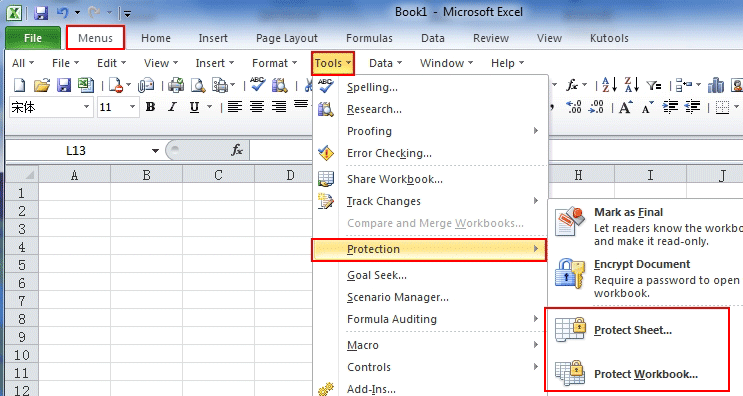
Just take Microsoft Excel 2010 for example, which is similar as in Excel 2007/2013. With Classic Menu for Excel 2007/2010/2013/2016/2019 installed, you can click Menus tab to get back the classic style interface.
-
On Menus tab, click Tools menu
-
Click Protection…
- You can choose to Protect Sheet or Protect Workbook
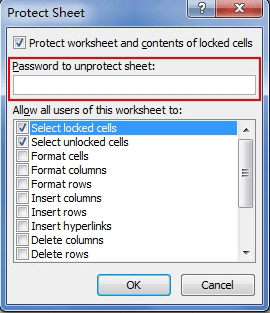
Then a dialog box will pop up to require you to enter the password. Just as the following figure shows, the area I emphasize with red box is for inputting password.
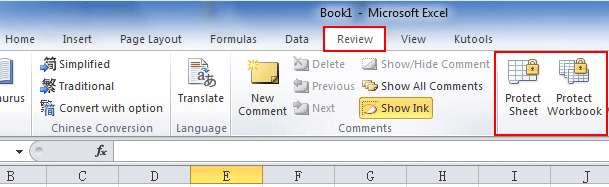
If you have not Classic Menu for Excel 2007/2010/2013/2016/2019 installed, you can …
-
Click Review tab
-
Move to Comments group
-
Choose Protect Sheet or Protect Workbook by clicking their buttons
 More Related Articles...
- Where is Conditional Formatting
- Where is Page Setup
- Where is Tools Menu
- Where is Undo
- Where is Macro
- Where are Pivot Table and PivotChart Wizard
- Where is Print Preview
- Where is Help Button
- Where is Goal Seek
- Where is Edit Menu
- Where is Decrease Decimal Button
- Where is Specify Decimal Place
Classic Menu for Office
Brings the familiar classic menus and toolbars back to Microsoft Office 2007, 2010, 2013, 2016, 2019 and 365. You can use Office 2007/2010/2013/2016 immediately without any training. Supports all languages, and all new commands of 2007, 2010, 2013, 2016, 2019 and 365 have been added into the classic interface.
Classic Menu for OfficeIt includes Classic Menu for Word, Excel, PowerPoint, OneNote, Outlook, Publisher, Access, InfoPath, Visio and Project 2010, 2013, 2016, 2019 and 365.
|
||
 |
Classic Menu for Office 2007It includes Classic Menu for Word, Excel, PowerPoint, Access and Outlook 2007.
|



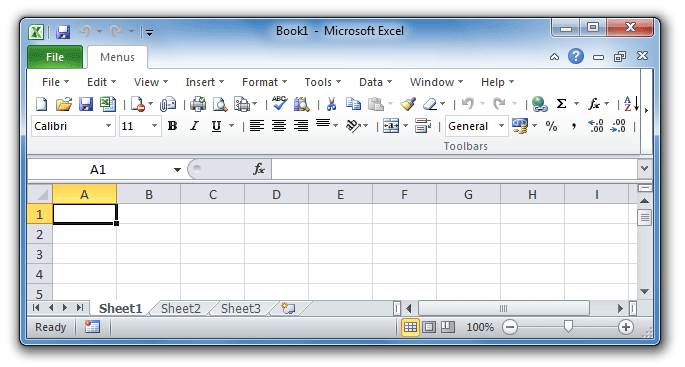
Screen Shot of Classic Menu for Excel