Where are Pivot Table and PivotChart Wizard in Excel 2007, 2010, 2013, 2016, 2019 and 365
We will always use Pivot Table to organize data which are defined under specified aspects and fields in Excel. It is simple to insert a pivot table in Excel 2003. But when upgrade to Microsoft 2007/2010/2013, users will feel there is no way to get the PivotChart Wizard. This topic points out the position of Pivot Table and PivotChart Wizard, and provides you with two different ways to get them.
 |
How to Bring Back Classic Menus and Toolbars to Office 2007, 2010, 2013, 2016, 2019 and 365? |
Now let’s see where Pivot Table and PivotChart Wizard are in Excel 2007/2010/2013.
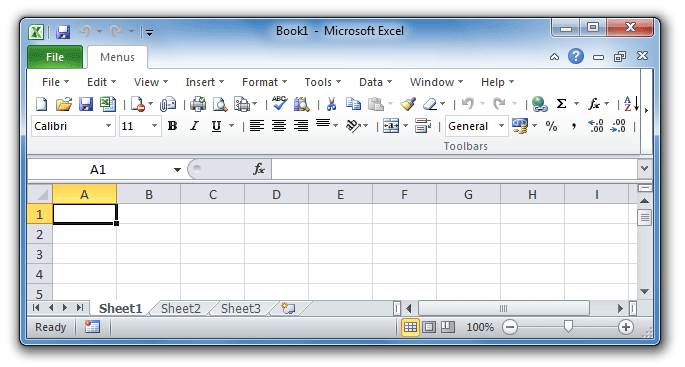
Find the feautre on Classic Menu
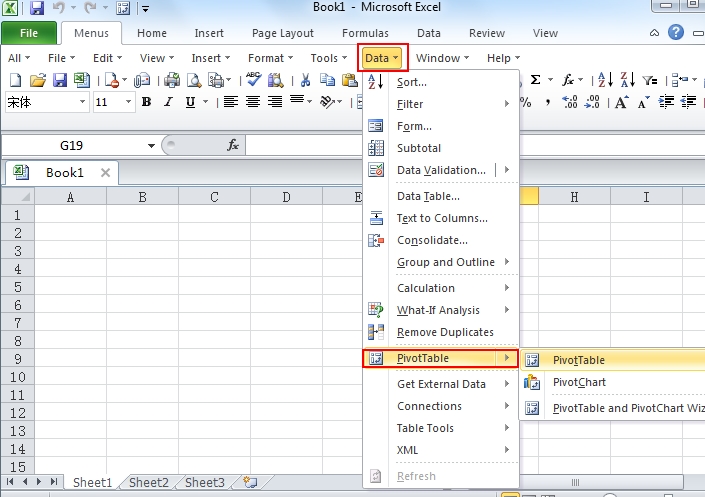
Open Microsoft Excel 2007/2010/2013, click Menus tab, and you can get back the classic style interface of Excel 2003/XP(2002)/2000. Then, just go to the familiar Data menu, you will find the Pivot Table function listed in the drop down menu. Click the arrow next to PivotTable, and you can get to start Pivot Table and PivotChart Wizard.
If you have not Classic Menu for Excel 2007/2010/2013/2016/2019 installed, you can …
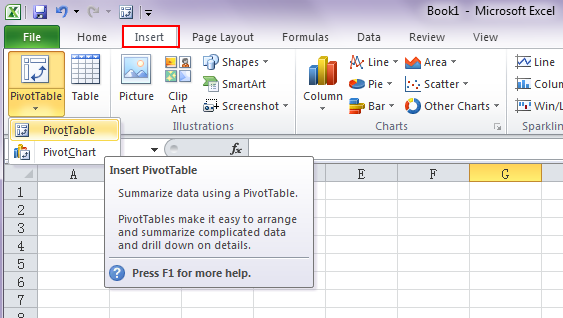
 To get the Pivot Table, just click Insert tab, and find out the PivotTable option in Tables group.
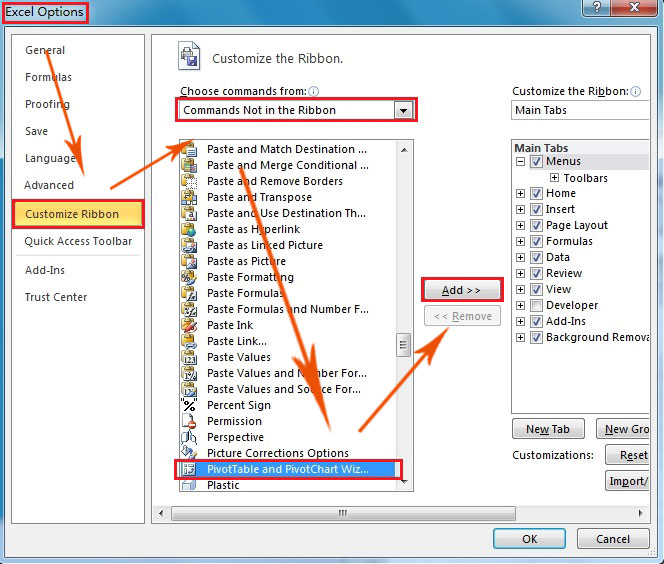
Microsoft Excel 2007/2010/2013/2016/2019 hide the PivotChart Wizard, which is not shown in the Ribbon. Without Classic Menu for Excel installed, it is not so intuitive to get this function. If you do need to use PivotChart Wizard, there still are several ways to configure it.
- Click File Tab, and click “Options” item.
- Click the Customize Ribbon in the Excel Options window, and then, you will see Customize the Ribbon in the right pane. Choose Commands Not in the Ribbon by clicking the arrow, and then use the scroll bar to search for the PivotTable and PivotChart Wizard.
- When finally find out the Wizard, click Add to add it into the Ribbon, and then click OK to finish the step.
 More Related Articles...
- Where is Conditional Formatting
- Where is Page Setup
- Where is Tools Menu
- Where is Undo
- Where is Macro
- Where are Pivot Table and PivotChart Wizard
- Where is Print Preview
- Where is Help Button
- Where is Goal Seek
- Where is Edit Menu
- Where is Decrease Decimal Button
- Where is Specify Decimal Place
Classic Menu for Office
Brings the familiar classic menus and toolbars back to Microsoft Office 2007, 2010, 2013, 2016, 2019 and 365. You can use Office 2007/2010/2013/2016 immediately without any training. Supports all languages, and all new commands of 2007, 2010, 2013, 2016, 2019 and 365 have been added into the classic interface.
Classic Menu for OfficeIt includes Classic Menu for Word, Excel, PowerPoint, OneNote, Outlook, Publisher, Access, InfoPath, Visio and Project 2010, 2013, 2016, 2019 and 365.
|
||
 |
Classic Menu for Office 2007It includes Classic Menu for Word, Excel, PowerPoint, Access and Outlook 2007.
|



Screen Shot of Classic Menu for Excel