Where is the Background in Microsoft PowerPoint 2007, 2010, 2013, 2016, 2019 and 365
- Used way to apply background if you have Classic Menu for Office
- If you do not have Classic Menu for Office
 |
How to Bring Back Classic Menus and Toolbars to Office 2007, 2010, 2013, 2016, 2019 and 365? |
Used way to apply background if you have Classic Menu for Office
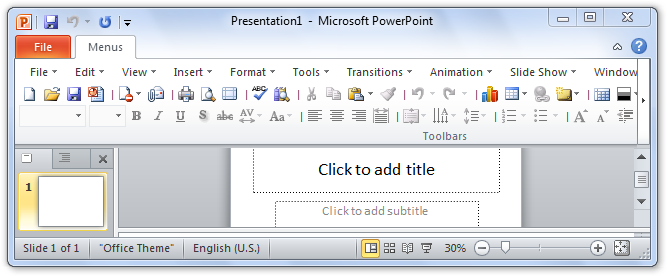
In PowerPoint 2003, we can easily add and design background in our presentation from the Format drop down menu. However, in PowerPoint 2007, 2010, 2013, 2016, 2019 and 365, the Format menu disappeared, and we can’t design, customize, and apply background from there any longer. If you have installed Classic Menu for PowerPoint, you will discover the Background styles and Hide Background Graphic under Format drop down menu.
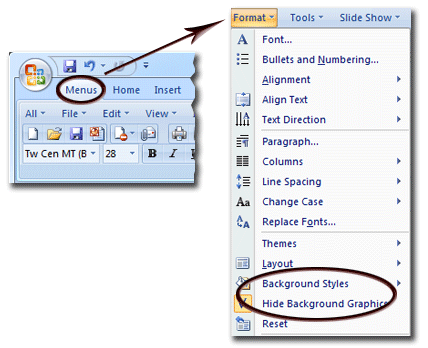
Figure 1: Edit Background in Classic Menu
Design background in Ribbon if you do not have Classic Menu for Office
In new Ribbon, features are grouped into tabs. The background feature is moved into Background group under Design tab. There you will view two buttons: Background styles and Hide Background Graphics.
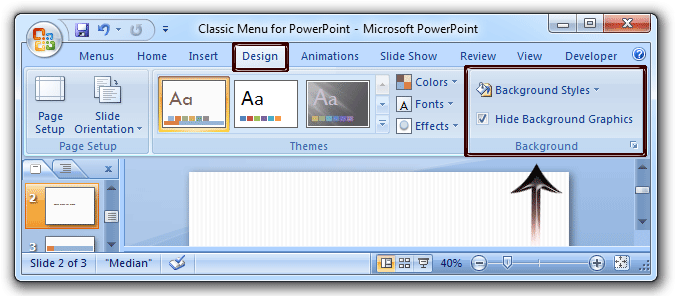
Figure 2: Edit Background in Ribbon

More tips for Microsoft PowerPoint
What is Classic Menu for Office
Brings your familiar classic menus and toolbars back to Microsoft PowerPoint 2007, 2010, 2013, 2016, 2019 and 365. You can use PowerPoint 2007/2010/2013/2016 immediately and efficiently, and don't need any trainings or tutorials when upgrading to Microsoft PowerPoint 2007, 2010, 2013, 2016, 2019 and 365.
Classic Menu for OfficeIt includes Classic Menu for Word, Excel, PowerPoint, OneNote, Outlook, Publisher, Access, InfoPath, Visio and Project 2010, 2013, 2016, 2019 and 365.
|
||
 |
Classic Menu for Office 2007It includes Classic Menu for Word, Excel, PowerPoint, Access and Outlook 2007.
|