Where is the Format Painter in Microsoft PowerPoint 2007, 2010, 2013, 2016, 2019 and 365
- Easily apply Format Painter in classic toolbar if you have Classic Menu for Office
- Get Format Painter in Ribbon if you do not have Classic Menu for Office
No matter you have Classic Menu for Office or not, it is very convenient to apply Format Painter in both Ribbon and classic style toolbars. Easily copy and apply format to other text!
 |
How to Bring Back Classic Menus and Toolbars to Office 2007, 2010, 2013, 2016, 2019 and 365? |
Easily apply Format Painter in classic toolbar if you have Classic Menu for Office
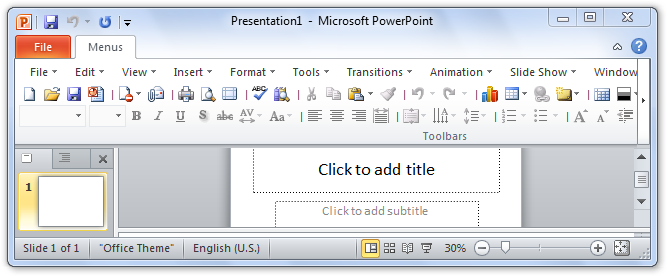
Classic Menu for PowerPoint will bring back classic style menus and toolbars into ribbon, and make you work as if it were Microsoft PowerPoint 2003. In the interface of classic style menus, the Format Painter stays in classic style toolbar (see figure 1).
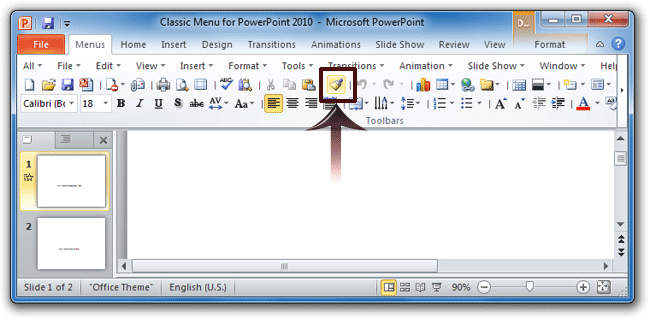
Figure 1
Get Format Painter in Ribbon if you do not have Classic Menu for Office
If you do not have Classic Men for Office, it is also very easy to find out Format Painter in Ribbon. The Format Painter stays in the Home Tab, which is opened by default when you open a PowerPoint presentation. In the first group of Clipboard, you will find out the Format Painter, just as the screen shot below shows:
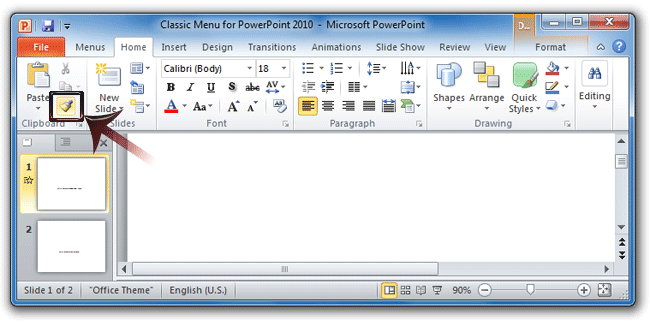
Figure 2

More tips for Microsoft PowerPoint
What is Classic Menu for Office
Brings your familiar classic menus and toolbars back to Microsoft PowerPoint 2007, 2010, 2013, 2016, 2019 and 365. You can use PowerPoint 2007/2010/2013/2016 immediately and efficiently, and don't need any trainings or tutorials when upgrading to Microsoft PowerPoint 2007, 2010, 2013, 2016, 2019 and 365.
Classic Menu for OfficeIt includes Classic Menu for Word, Excel, PowerPoint, OneNote, Outlook, Publisher, Access, InfoPath, Visio and Project 2010, 2013, 2016, 2019 and 365.
|
||
 |
Classic Menu for Office 2007It includes Classic Menu for Word, Excel, PowerPoint, Access and Outlook 2007.
|