Where is the Outline View in Microsoft PowerPoint 2007, 2010, 2013, 2016, 2019 and 365
It is very easy to find the Outline view in Microsoft PowerPoint 2007, 2010, 2013, 2016, 2019 and 365. However sometimes it seems disappear and hard to find out it. Take it easy! The Outline view is hidden in the Normal view:
 |
How to Bring Back Classic Menus and Toolbars to Office 2007, 2010, 2013, 2016, 2019 and 365? |
Step 1: Get into the Normal view; Here are three method to get into Normal View:
- Method A: Normal View in menus if you have Classic Menu for Office
- Method B: Normal View in Ribbon
- Method C: Normal View in Status bar
Step 3: Click the Outline tab (for intuitional help, view figure 1).
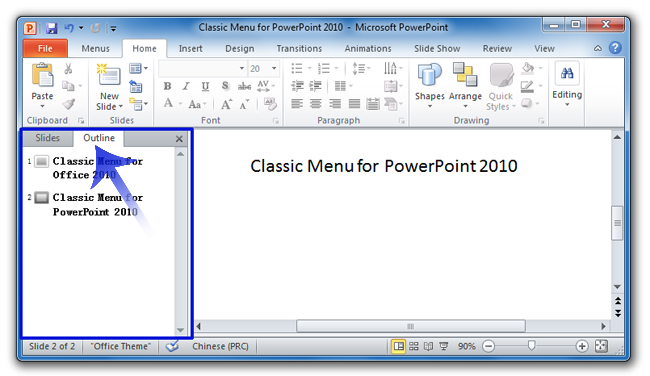
Figure 1
In usual the Normal view is defaulted view in Microsoft PowerPoint 2007, 2010, 2013, 2016, 2019 and 365. If you have changed your PowerPoint view, and forgot how to get into Normal View, please do not worry about it! Here are three method to get into Normal View:
Method A: Show PowerPoint in Normal View with Classic Menu for Office
- Click the View drop down menu in main menus;
- Click the Normal item, then your PowerPoint 2007, 2010, 2013, 2016, 2019 and 365 interface will be in Normal View
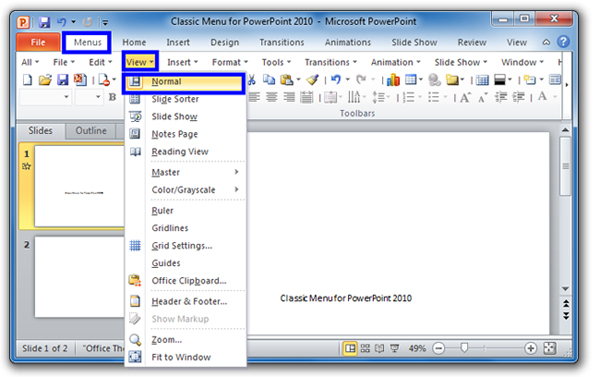
Figure 2
Method B: Get into Normal View from Ribbon if you do not have Classic Menu for Office
- Click the View tab;
- Go to the Presentation Views group;
- Click the Normal button.
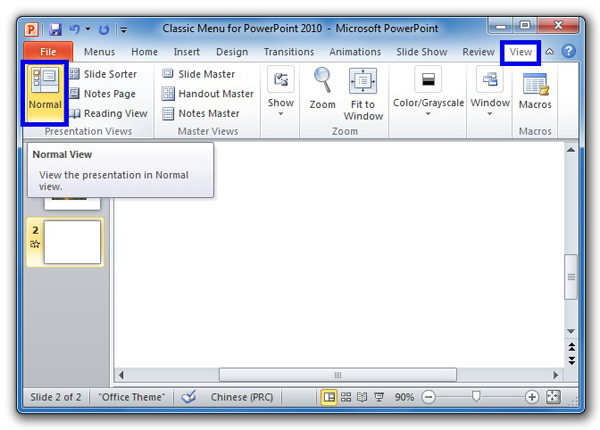
Figure 3
Method C: Get into Normal View from Status bar
At the bottom of Microsoft PowerPoint 2007, 2010, 2013, 2016, 2019 and 365, click the Normal view button and get into Normal view.
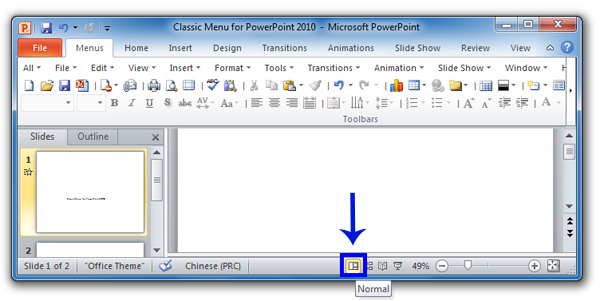
Figure 4

More tips for Microsoft PowerPoint
What is Classic Menu for Office
Brings your familiar classic menus and toolbars back to Microsoft PowerPoint 2007, 2010, 2013, 2016, 2019 and 365. You can use PowerPoint 2007/2010/2013/2016 immediately and efficiently, and don't need any trainings or tutorials when upgrading to Microsoft PowerPoint 2007, 2010, 2013, 2016, 2019 and 365.
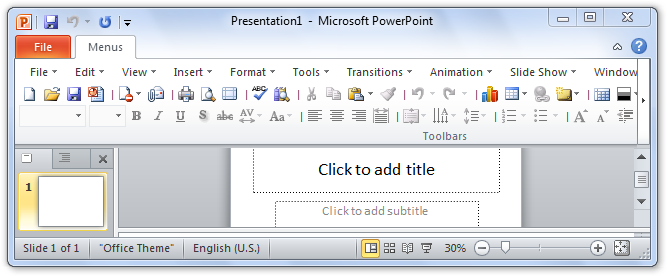
Classic Menu for OfficeIt includes Classic Menu for Word, Excel, PowerPoint, OneNote, Outlook, Publisher, Access, InfoPath, Visio and Project 2010, 2013, 2016, 2019 and 365.
|
||
 |
Classic Menu for Office 2007It includes Classic Menu for Word, Excel, PowerPoint, Access and Outlook 2007.
|